How to remove metadata from PDF and Word files, step by step
· Updated

Joaquín Trapero in Founder of Nonimo, writing on AI and privacy.
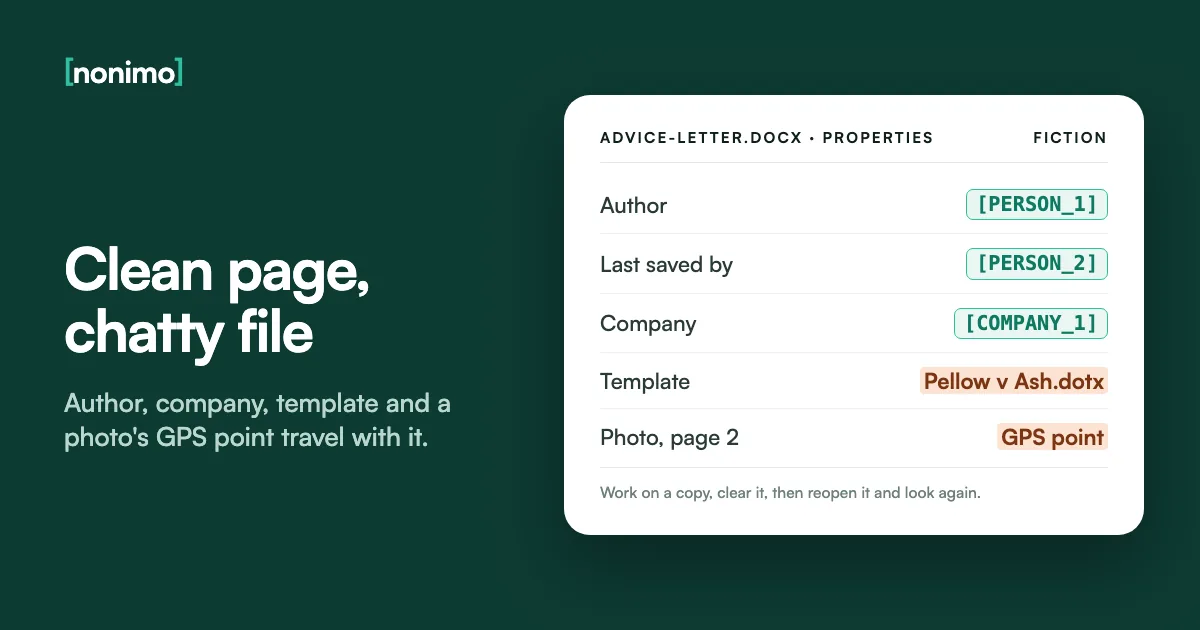
Every Word file and PDF keeps a small record about itself: who created it, who saved it last, the template it grew from and, for a phone photo dropped inside, where the picture was taken. None of it prints, and all of it travels.
This guide clears that layer (file properties, PDF metadata blocks, picture data) in Word on Windows and Mac, Acrobat, Preview and LibreOffice. Hiding text on the page is a different job, set out in our Word redaction walkthrough. This one is easier to forget, I’d guess, because nothing on screen prompts it.
Work on a copy and clear it with the tool your app offers. Word for Windows has Document Inspector. Word for Mac has none, so edit File, Properties by hand. Acrobat can sanitise a PDF into a new file. LibreOffice can strip personal information on saving. Reopen the copy and check again.
What hidden data does a Word document or PDF carry?
Three layers sit outside the visible text. Properties describe the file: author, last saved by, company, title, template, dates. Custom fields hold whatever a document system or a colleague added, often a matter number. Pictures keep a separate record written by the camera.
Ireland’s Data Protection Commission (DPC) says as much in its note on redacting records. File properties can hold the name of whoever created or edited a file, creation dates and revision history. Some phones and cameras add the photographer’s username, the time, the location and even lens settings.
For our test of 28 September 2026, we made up an advice letter as a .docx, redacted its body, filled in the properties and read the file back. The page never named the client; the file did, five times. A page-only sign-off doesn’t reassure me, as one leaked property raises the breach question.
Where our test letter still named people
The page was clean. These parts of the file were not.
| Part of the .docx | What it holds | What we found |
|---|---|---|
| Core properties | Title, subject, author, last saved by, keywords, dates, revision number | Client surname in title, subject and keywords; two staff names; revision 14 |
| Extended properties | Company, manager, template, total editing time | Firm name in company and template; 312 minutes of editing |
| Custom properties | Fields added by software or by people | A Client field, and a server path with the surname as a folder |
| Embedded picture | The image and its EXIF block | Camera make and model, time taken, an artist name, GPS to four decimals |
Our test of 28 September 2026: an invented .docx built with python-docx 1.2, read back with python-docx and Pillow. All data fictional; the GPS point was a public park. Pictures are one of several quiet exits for client data.
Check a .docx for names before it leaves
Seeing what’s there comes before clearing it. The checker below opens a Word file inside your browser and lists the names stored as author and last saved by, plus every name attached to tracked changes and comments. Nothing is sent anywhere: the reading happens on your machine.
It also counts tracked changes, comments and hidden text, because each one carries a name. Settling those is a task of its own, covered in the guide to clearing tracked changes for good. The checker doesn’t read the title, subject, keywords, company field, template, custom properties or pictures.
So a clean result here is a first pass, not a verdict. If a name turns up that nobody expected, I’d consider the whole file suspect and run the full clean in the next section on a copy.
Which names does your Word file carry?
Pick a .docx, ideally a copy or a test file.
Runs locally in your browser: the file is read on your computer and no network request is made. It reads author, last saved by, tracked-change and comment authors, and hidden text. It does not read title, subject, keywords, company, template, custom properties or picture data.
Document Inspector in Word, and the Mac workaround
On Windows, Microsoft’s Document Inspector does most of the work. Its Document Properties and Personal Information check covers the Summary, Statistics and Custom tabs of the properties dialog, plus usernames, template names, email headers, routing slips and server properties. Microsoft advises running it on a copy, since removed data can’t always be restored.
Word for Mac is another story. Microsoft’s own help says it doesn’t have a document inspector, so properties are changed by hand through File, then Properties. The same page says Word for the web can’t view or change properties at all, so this job needs the desktop app.
The Mac gap is my main concern, because a hand-cleared file depends on someone remembering every tab. In an office that runs on Macs, those steps belong, in my view, in the firm’s written rules for AI tools rather than in memory on a deadline.
Clearing properties in Word, by platform
Pick the computer the file is on.
- Use Save As to make a copy with a name that marks it as outgoing.
- On the File tab, select Info, choose Check for Issues, then Inspect Document.
- Tick Document Properties and Personal Information and select Inspect.
- Choose Remove All next to that result.
- Save, close, reopen and look at the properties on the Info page again.
- Duplicate the file and open the copy.
- In the menu bar, open File and pick Properties.
- Under Summary, clear or edit each field.
- Under Custom, choose each property in turn and click Delete.
- Save, close, reopen and open Properties again to confirm.
Menu names from Microsoft Support: Remove hidden data and personal information by inspecting documents (Windows), and Inspect document (Word for Microsoft 365 for Mac).
How to remove metadata from a PDF in Acrobat
Adobe documents two routes. The light one edits properties: Menu on Windows or File on macOS, then Document Properties, change or delete the fields, check the Additional Metadata section, press OK and save. Adobe warns that deleted metadata can’t be brought back and that some permissions block the edit.
The thorough one lives in the Redact a PDF tool. After any redactions are applied, you select Continue to sanitise and remove hidden information. Adobe says that covers items such as comments, metadata and hidden layers, and that the result is saved to a new file.
For a PDF leaving the office, the second route gets my vote, because it doesn’t depend on someone spotting every field. Black boxes over words on the page are a separate matter, and covering text in a PDF so it can’t be copied back has its own guide.
Two Acrobat routes, side by side
| Route | Where to find it | What it clears | What you get |
|---|---|---|---|
| Edit the properties | Menu (Windows) or File (macOS), then Document Properties | The fields you change or delete, including Additional Metadata | The same file, saved |
| Sanitise | All tools, Redact a PDF, then Continue after applying | Hidden information such as comments, metadata and hidden layers | A new file |
Adobe: How to remove metadata from a PDF; Remove Sensitive Information (Adobe Experience League).
Free tools: Preview on a Mac and LibreOffice
Apple’s Preview is a viewer first. Its Inspector, opened with the Info button in the toolbar, shows general details such as the author name, and a More info panel shows where a photo was taken. Apple documents removing keywords through Tools, then Show Inspector, but describes no way to clear the author.
LibreOffice goes further. Its security options include Remove personal information on saving, which strips user data from file properties, comments and tracked changes, swaps author names for labels such as Author1 and resets time values. Under File, Properties, General, Reset Properties zeroes the editing time and resets the creation date.
I’m happy to inspect a PDF in Preview but wouldn’t rely on it to clean one. For a .docx, LibreOffice is a fair free choice, and it opens spreadsheets too; hidden sheets and names in Excel files have their own guide.
What each free tool lets you do
Preview (macOS)
- See the author and file details: Info button
- See where a photo was taken: More info
- Remove keywords: Tools, Show Inspector
- Clear the author: not described by Apple
LibreOffice
- Remove personal information on saving: security options
- Reset editing time and dates: File, Properties, General
- Stop saving your full name: untick Apply User Data
- Works on Word files and spreadsheets
Apple Preview User Guide; LibreOffice Help, Security Options and Warnings, and General (File properties).
Why a PDF made from Word can still name the author
Exporting to PDF creates a new file, but its properties can start as copies of the Word file’s. Adobe lists the author’s name, the title, the creation date and keywords as typical PDF metadata. A US federal court, the Southern District of Alabama, warns filers that Word metadata can survive the conversion.
There’s a second trap. A PDF can store its properties twice, in the document information dictionary and in an XMP packet, a block of XML. Our 28 September test used an invented one-page PDF made with reportlab, with both filled, then one copy with only the dictionary emptied and one with both removed.
Read with pypdf, the half-cleaned copy still named the author and the client in its XMP. So the sequence I stand by is clear Word first, export, then sanitise the PDF. A clean copy can still be forwarded, so on anything sensitive, a watermark naming the recipient is a sensible extra.
Three copies of our test PDF
Same page text in all three. Only the hidden blocks differ.
| Copy | Information dictionary | XMP packet |
|---|---|---|
| Original | Author, and the client in the title | Author, and the client in the title |
| Dictionary emptied | Empty | Still author, and the client in the title |
| Both removed | Empty | None |
Our test of 28 September 2026: an invented PDF made with reportlab and read with pypdf 6.10. Typical PDF metadata as listed by Adobe in How to remove metadata from a PDF.
Photos inside the file: GPS and camera details
A picture placed in a .docx is stored as its own file inside the package. In our test, python-docx kept the photo exactly as supplied, EXIF block and all, and Pillow read the GPS point straight back. We didn’t test what Word itself does on insertion, so don’t assume the data has gone.
Microsoft’s Inspector page doesn’t list camera data among what its checks remove. Treat each picture as its own task. AI assistants are no clearer: what ChatGPT, Gemini, Claude and Copilot say about uploaded photos leaves the EXIF question open.
When a photo only has to show something, such as damp on a wall, a screenshot of it does the job and leaves the camera record behind. That swap makes sense to me whenever the location could point to someone’s home.
Do the pictures in this file need attention?
Tick what applies to the document you're about to send.
0 of 7 points
Nothing ticked yet.
Open each picture's details before sending; Preview's More info panel shows a location on a Mac.
Replace the pictures with screenshots, or send the text instead of the file.
A rough sorting aid of ours, not a standard. Apple's Preview User Guide describes the More info panel; the DPC note lists location among camera metadata.
Upload the file or paste the text into an AI tool?
Paste three paragraphs into a chatbot and it gets three paragraphs. Attach the file and properties, custom fields and pictures go too, read or unread. Outside Temporary Chat, ChatGPT saves uploads to Library or Space, and deleting the chat leaves them there; what else ChatGPT keeps depends on your plan.
The GDPR’s data minimisation principle (EU and UK law), in Article 5(1)(c), asks for personal data limited to what’s necessary for the purpose. A colleague’s name in the author field does nothing for a summary. The DPC notes that exporting to plain text strips out various kinds of metadata.
For most AI tasks, text is enough, and I’d send nothing more. If you’re in Ireland, Practice Direction HC 142 has deponents declare that AI didn’t produce their evidence, and a note that the file was cleaned fits alongside that record.
File or text: a quick route
Does the task need the file's layout, formulas or clause numbering?
Can someone clean a copy first, with the Inspector, Acrobat or LibreOffice?
Our decision aid, built on GDPR Article 5(1)(c) and the DPC's note on exporting to plain text.

Clean text and a clean copy with Nonimo
Nonimo’s desktop app, on a Mac or a Windows PC, takes a Word file or a PDF and gives back two things: the text, with each client detail swapped for a label, ready to paste, and a redacted copy of the file. Open Nonimo and drop in the copy you were about to upload.
In the Word copy, the properties that point to people are emptied or redacted and pictures lose their EXIF data, as the table shows. A PDF copy is a fresh file holding the text alone, without the original layout. Labels are masking, not anonymity: de-identified and anonymous data are different things.
The template name and the file name are left for you, and I’d rename any file still called after the client. The app does its swapping on the computer it’s installed on, so the text it works on never passes through our servers; the security page written for IT teams has the rest.
What Nonimo's Word copy does to each part
| Part of the file | In the redacted copy |
|---|---|
| Author, last saved by, company | Emptied |
| Title, subject, description, keywords, category, custom properties | Redacted |
| List of people and their email addresses | Emptied |
| Thumbnail and custom XML | Removed |
| Embedded pictures | Kept, without EXIF data |
| Page text | Client details replaced by labels |
Nonimo's own description of the redacted Word copy made by its desktop app.
Sources
- Microsoft Support, Remove hidden data and personal information by inspecting documents, presentations, or workbooks: what the Document Properties and Personal Information check covers; inspect a copy.
- Microsoft Support, Inspect document: the Mac edition’s manual route through Properties; Word for the web can’t show or edit properties.
- Adobe, How to remove metadata from a PDF: Document Properties steps, typical PDF metadata, no undo, permissions.
- Adobe Experience League, Remove Sensitive Information: Continue to sanitise and remove hidden information, saved to a new file.
- Apple, View information about PDFs and images in Preview on Mac: Info button, General info and More info, including where a photo was taken.
- Apple, Assign keywords to a PDF or image in Preview on Mac: removing keywords through Tools, Show Inspector.
- LibreOffice Help, Security Options and Warnings: Remove personal information on saving.
- LibreOffice Help, General (File properties): Apply User Data and Reset Properties.
- Data Protection Commission, Redacting Documents and Records: file properties, camera metadata, plain-text export stripping metadata.
- US District Court, Southern District of Alabama: Best Practices, Redaction of Information: hidden metadata, revision history included, can remain after conversion to PDF.
- OpenAI Help Center, Using Library to manage files in ChatGPT: uploaded files saved automatically; deleting a chat leaves them in Library.
- Regulation (EU) 2016/679, Article 5(1)(c): data minimisation.
Accessed 10 November 2026.
Common questions
Does Document Inspector remove the author's name from a Word file?
Yes, through its Document Properties and Personal Information check. Microsoft says that check covers the Summary, Statistics and Custom tabs, usernames and template names. Run it on a copy and choose Remove All.
Is there a Document Inspector in Word for Mac?
No, the Mac edition of Word lacks that tool. Open File, then Properties, retype or blank the Summary fields and remove each Custom entry, then save, reopen and look again.
Can Preview on a Mac remove metadata from a PDF?
Only in part. Apple's guide shows Preview displaying the author and removing keywords, but describes no way to clear the author. Use it to check a PDF, and clean it elsewhere.
Does saving a Word document as a PDF keep the metadata?
It can. The new PDF may start with the Word file's title, author and subject. Clear the Word properties before exporting, then open the PDF's Document Properties and read every field.
How do I remove personal information in LibreOffice?
Switch on Remove personal information on saving in the security options. LibreOffice then strips user data from properties, comments and tracked changes when you save, replacing author names with labels such as Author1.
Will an AI chatbot receive the metadata of a file I upload?
Yes, an upload hands over the whole file, properties included. Whether the tool reads them varies. Pasting the text instead leaves properties, custom fields and pictures behind.
Does removing metadata make a document anonymous?
No, the words on the page usually still name people. Clearing properties closes one route; names, numbers and addresses in the text need replacing too, and the original stays in your files.