How to remove track changes in Word permanently
· Updated

Joaquín Trapero in Founder of Nonimo, writing on AI and privacy.
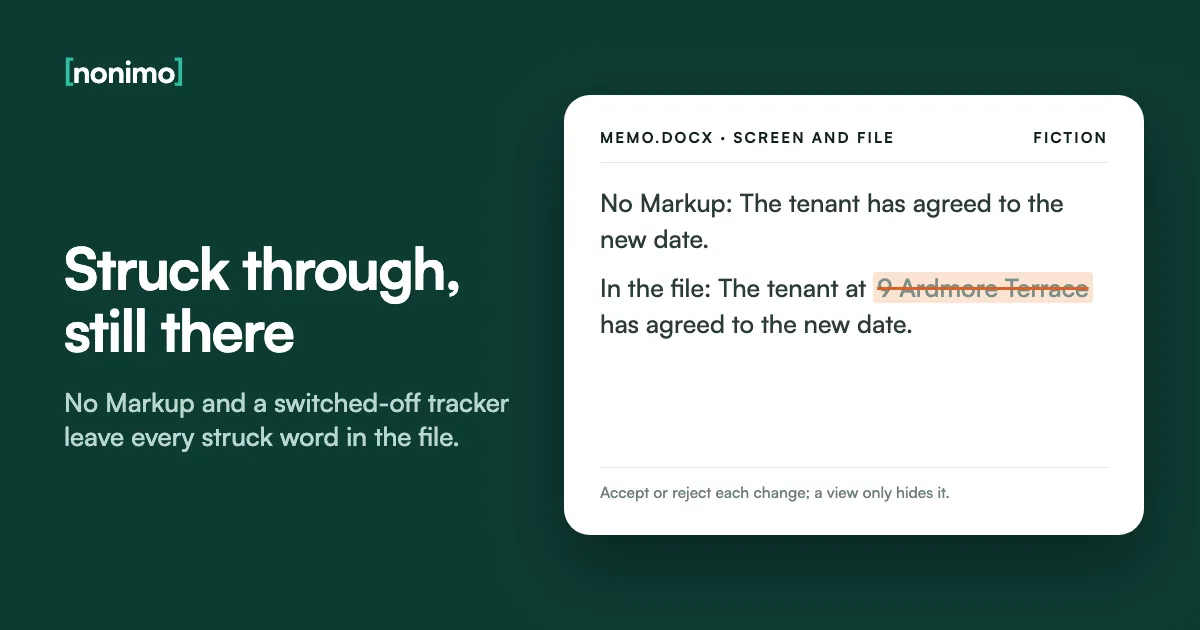
A Word draft can look finished on screen and still hold every word anyone struck out. The strikethrough is just how Word draws a deletion. The deleted words stay inside the .docx until somebody accepts or rejects the change, whatever view you pick or switch you flip.
What follows settles those edits and comments for good, in Word for Windows, Mac and the web, then checks the copy. Taking client names out of the remaining text is a different task, covered in our walkthrough for redacting a .docx by hand. I’d put my money on settling a copy, not a view setting.
Accept or reject every change; no view or switch removes them. On a copy, open Review, the Accept list, and choose Accept All Changes and Stop Tracking (Accept All Changes on Mac and web). Delete comments from the arrow beside Delete. On Windows, finish with Inspect Document, then reopen the copy.
Accept all changes, reject the rest: the order that works
Microsoft’s help on reviewing edits starts from one premise: to remove tracked changes, you must accept or reject them. Every other control on the Review tab only alters what you see. So clearing a draft is a short series of passes, run on a copy, in an order that avoids repeating any.
On Windows, the handiest entry sits in the Accept list: Accept All Changes and Stop Tracking. It settles every edit and switches recording off in one go. If a few edits must not survive, deal with those first: right-click each one and choose to accept or reject it.
Keep the tracked original in the client file and settle a copy named for whoever receives it. Accepting everything on the only copy is, to my mind, the costliest slip here: once saved, it can’t be undone. The history of who changed which clause is worth keeping; it just isn’t worth sending.
Five passes on the outgoing copy, in this order
Word for Windows. The Mac and browser differences come further down.
1. Copy
File, Save As, with a name that says who it's for2. Settle
Reject the edits you don't want, then Accept All Changes and Stop Tracking3. Comments
Arrow beside Delete, then Delete all Comments in Document4. Inspect
File, Info, Check for Issues, Inspect Document5. Count
Reopen and open the Reviewing Pane: its summary should show nothing leftMenu names from Microsoft Support's Accept or reject tracked changes and Track changes in Word pages, and its Delete comments help. Microsoft says the Reviewing Pane summary shows the exact number of visible tracked changes and comments remaining. The author and company fields are a further layer: the properties that record who wrote and saved a file.
Does No Markup remove tracked changes? What each view and switch leaves
The Markup list on the Review tab offers Simple Markup, All Markup, No Markup and Original. The last two look like finished documents. Microsoft says choosing No Markup only temporarily hides changes, and that under Original, anything not accepted, rejected or deleted remains in the document.
The Track Changes switch misleads from the other side. Once it is off, Microsoft says, Word stops marking changes, but the coloured underlines and strikethroughs are still there. Clearing Print Markup under File, Print gives clean paper and nothing more: hiding changes doesn’t remove them.
We saw this in the invented test memo behind our Word redaction guide, built on 28 September 2026. A street address deleted with tracking on vanished in a clean view, yet LibreOffice wrote it back out when saving the file as plain text. Any check that amounts to looking at the screen doesn’t convince me.
I did this. Has the edit left the file?
No. Only your screen changed. The next person to open the file can switch the view back and see every edit.
No. Original shows the text as it was before the edits; the edits and comments are still stored.
No. New edits stop being tracked. Everything already tracked stays, underlined and struck through, until accepted or rejected.
No. The paper is clean. The file you might email afterwards is exactly as it was.
Not reliably. Guidance from a US federal court says hidden revision history may remain viewable once the file becomes a PDF. Settle the Word copy first, then convert, then follow the checks for a PDF that has to stay covered.
Microsoft Support, Accept or reject tracked changes in Word and Track changes in Word; US District Court for the Southern District of Alabama, Best Practices: Redaction of Information.
Deleting comments in Word, resolved threads included
Comments now live apart from edits: Microsoft states that comments are no longer part of the Track Changes function. Accept All leaves every remark where it was. The bulk route is identical in Word for Windows, Mac and the web: on the Review tab, the arrow beside Delete, then Delete all Comments in Document.
Resolving is where people slip. Microsoft’s page on modern comments says the contextual view hides resolved comments, while the Comments pane’s list view includes all active and resolved ones. A resolved thread has been filed out of the margin, not out of the file.
Each comment also carries its author’s name, and a blunt aside about a client reads very differently outside the office. PowerPoint’s comment threads name their reviewer too. On anything leaving the firm, my answer is to delete every thread, open or resolved, and keep the discussion in the original.
Three states of a Word comment
| State | In the margin | In the Comments list view | Inside the .docx you send |
|---|---|---|---|
| Open | Yes | Yes | Yes, with the author's name |
| Resolved | No | Yes | Yes, with the author's name |
| Deleted (Delete all Comments in Document) | No | No | No |
Microsoft Support, Using modern comments in Word (contextual and list views) and Delete comments. A resolved comment can be reopened from the list, which is why it still travels with the file.
Why can’t I accept tracked changes? Lock Tracking and Restrict Editing
When Accept is greyed out, the file is usually locked. On Windows, Lock Tracking under Review, Track Changes sets a password that keeps tracking on. Microsoft says that while tracked changes are locked, you can’t turn tracking off and can’t accept or reject changes. On a Mac the lock is Review, Protect, Protect Document.
Restrict Editing, in the Protect group of the Review tab, is the broader lock: it can make a file read-only apart from chosen parts. Ending it takes Stop Protection and the password. Microsoft also notes that a document shared with you for review may not let you turn tracking off.
Don’t try to break a lock on someone else’s draft; ask whoever set it. A password known to one partner is a sending problem in waiting. Were I running the firm, the written rules staff follow on documents and AI would name who holds those passwords.
Accept is greyed out. Why?
Under Review, Track Changes, is Lock Tracking on? (Mac: is Protect Document on?)
Does Review, Restrict Editing show a Stop Protection button?
Did the file reach you as a document shared for review?
Lock Tracking and Protect Document as described in Microsoft Support's Track changes in Word; Restrict Editing and Stop Protection from its page on protected documents. The last outcome is our own suggestion.
Word for Mac and Word for the web: same job, other menus
On a Mac and in the browser the wording barely changes. The Accept list on the Review tab holds Accept All Changes, the Reject list holds Reject All Changes, and comments go through the arrow beside Delete. On an iPad or iPhone, Microsoft gives Accept All & Stop Tracking, which does both jobs.
The gaps come at the end. Microsoft’s Inspect document page says Word for Mac doesn’t have a document inspector, and that viewing or changing properties isn’t currently possible in Word for the web. To stop tracking on a Mac you select Track Changes again; in the browser, you choose Off from its list.
If my team edited mostly in the browser, I’d give the last pass to one named Windows machine rather than whoever is free. Files in Microsoft 365 raise one more question, since Copilot can open the same tenant documents.
Where each step lives, by version of Word
| Step | Windows | Mac | Web |
|---|---|---|---|
| Accept everything | Accept All Changes and Stop Tracking | Accept All Changes | Accept All Changes |
| Reject everything | Reject All Changes | Reject All Changes | Reject All Changes |
| Delete every comment | Arrow beside Delete, then Delete all Comments in Document | ||
| Stop tracking | Review, Tracking, Track Changes | Select Track Changes again | Track Changes, then Off |
| Lock tracking | Lock Tracking | Protect Document | Not described |
| Final check for leftovers | Inspect Document | No inspector: check by hand | Open in the desktop app |
Microsoft Support: Accept or reject tracked changes in Word, Track changes in Word, Delete comments, and Inspect document.
Checking the copy: Document Inspector and the deleted words read back
Microsoft suggests the Document Inspector after accepting: it checks for tracked changes and comments, hidden text, personal names in properties and other information. Windows users find it under File, Info, Check for Issues, Inspect Document. Here its job is to catch whatever the earlier passes missed.
A Mac has no inspector, so the proof must come from elsewhere. The checker below reads your .docx without uploading it and, if any deletion is still pending, prints the deleted words back to you. Stored author and company fields are a separate pass, set out in our metadata guide for Word and PDF.
Run it on the copy you’re about to send, not on the original. I’d trust an empty result here over any clean view in Word, because it reads the file and not the screen.
What would a recipient's software find in this copy?
Choose the file you're about to send. Any deletion still pending is quoted word for word.
The file is opened locally by this page's own script; nothing is sent anywhere. It counts unsettled insertions and deletions, comments (resolved ones included) and hidden text, and lists every author name attached to them. Headers, white text and most properties are outside its reach.
Sending a draft with tracked changes to a client, a court or an AI tool
Send the tracked draft and a client may find a withdrawn fee, the other side your fallback position. The Southern District of Alabama warns that revision history can survive PDF conversion, and in US federal civil cases Rule 5.2 limits how much of an SSN a filing shows; state courts set their own.
AI tools are the newest recipient. An upload sends the .docx with its deletions and comments inside. What the model reads depends on how each provider converts the file; we make no claim about any one chatbot. OpenAI says ChatGPT saves uploaded files to Library, and how long it keeps them depends on your plan.
Under the GDPR (EU and UK law), personal data is anything relating to an identifiable person, struck through or not. Australia’s OAIC, as one regulator, advises organisations not to enter personal information into publicly available AI chatbots. I wouldn’t upload a tracked draft to any chatbot; if one has gone, this breach test applies.
Who opens an unsettled draft, and what can surface
| Recipient | What they can see | Why it matters |
|---|---|---|
| Client | Struck-out wording and internal comments, once they change the view | Remarks about them, or a figure withdrawn |
| The other side | Your earlier drafting of each clause | Your negotiating position |
| A court, via a PDF | Revision history, if it survived conversion | Filed documents are hard to recall |
| An AI chatbot | Whatever its converter extracts; the stored file holds it all | Kept in the provider's systems on its own schedule |
Southern District of Alabama, Best Practices: Redaction of Information; OpenAI Help Center on Library; OAIC guidance on commercially available AI products (updated 17 January 2025). Per the Library of Congress format description, a .docx typically keeps tracked changes and threaded comments. Firms that want AI on full drafts can weigh a model of their own against a masking proxy.

Once the edits are settled, the names in the body remain
Accepting everything leaves the document you meant to send, with the client’s name, address and account number still in plain view. That part is Nonimo’s job. The Word tool on our .docx redaction page sends the file to our server for processing and returns it with markers like [PERSON_1] where the details were.
The Nonimo desktop app for Mac and Windows does the swap on your own computer, so the document stays there, and your actual details come back when you copy the AI’s answer; our security page has the detail.
Labels can be reversed by whoever holds the key, so the result is masked rather than anonymous. For a draft heading out, the order I’d stick to is settle, delete, inspect, then label. Run the settled copy through Nonimo before it goes anywhere.
A settled copy, before and after labelling
Clementine Arkwright agreed the revised supply terms with Dunsford Creamery on 3 March.
[PERSON_1] agreed the revised supply terms with [COMPANY_1] on 3 March.
Made-up names and date. Which markers appear in a real file depends on what the tool detects. How the web tool handles an uploaded file is set out in its privacy notice.
Sources
- Microsoft Support, Accept or reject tracked changes in Word. Accept or reject to remove changes; No Markup only hides them; Accept All Changes on each version; the Document Inspector as the final check.
- Microsoft Support, Track changes in Word. Markup views, turning tracking off keeps the marks, Print Markup, Reviewing Pane count, Lock Tracking, Protect Document, comments outside Track Changes.
- Microsoft Support, Delete comments; Using modern comments in Word; Inspect document; Allow changes to parts of a protected document. Comment deletion, resolved comments in list view, no inspector on Mac, Restrict Editing.
- US District Court, Southern District of Alabama: Best Practices, Redaction of Information. Metadata can hold revision history, viewable after PDF conversion.
- Legal Information Institute: Federal Rules of Civil Procedure, Rule 5.2. Subdivision (a) sets four limits for federal civil filings, from SSNs to minors’ names; under (h), filing your own details unredacted and not under seal waives the protection.
- Library of Congress: DOCX Transitional (Office Open XML). .docx files store tracked changes and threaded comments.
- OpenAI Help Center: Using Library to manage files in ChatGPT. Uploaded documents saved automatically; deleting a chat leaves the file.
- OAIC: Guidance on privacy and the use of commercially available AI products. Best practice: no personal information in publicly available AI chatbots.
- EUR-Lex: Regulation (EU) 2016/679, the GDPR. Article 4(1), the definition of personal data.
- Our test file of 28 September 2026: a made-up memo whose tracked deletion LibreOffice restored on export to plain text.
Accessed 10 November 2026.
Related guides
Common questions
Does turning off Track Changes delete the changes?
No, it only stops Word recording new edits. Microsoft says the underlines and strikethroughs already made stay in the document until each change is accepted or rejected.
Will the recipient see changes if I send the file in No Markup view?
Yes, as soon as they switch the view back. Microsoft says No Markup only hides changes temporarily. The edits are still stored, so settle them before the file leaves.
Do resolved comments stay in a Word document?
Yes, resolving files a comment away without deleting it. The list view of the Comments pane still shows resolved threads. Delete all Comments in Document removes them.
Why is Accept greyed out in Word?
Usually the file is locked or protected. Lock Tracking and Restrict Editing both need the password of whoever set them; on a Mac, untick Protect document for and enter it.
How do I accept all tracked changes on a Mac?
Open the Review tab, use the arrow beside Accept and pick Accept All Changes. Then clear comments from the arrow beside Delete, since the Mac version offers no inspector to catch leftovers.
Can an AI chatbot read tracked changes in a Word file?
The file it receives contains them. An upload sends the whole .docx, deletions and comments included. What the model then extracts depends on the provider's own converter; we make no claim about any particular chatbot.