· Updated

Joaquín Trapero in Founder of Nonimo, writing on AI and privacy.
A slide deck holds far more text than the slides you click through. Speaker notes, slides you hid, reviewer comments with their authors, the slide master and the spreadsheet tucked inside each chart all travel in the same .pptx, and any program that opens the file can read them.
Below, each of those places gets its own pass on a copy, with the spots where PowerPoint for Mac and the web fall short. Settle which personal details have to go before you open the deck. I see no point tidying a slide the recipient never asked for: delete it.
Delete the text; never cover it. On a copy, empty the speaker notes, delete hidden slides and comment threads, swap embedded charts for pictures and check the slide master. Then run Inspect Document on Windows. Microsoft lists no inspector for Mac or the web, so check those copies by hand.
Why a black box doesn’t redact a PowerPoint slide
A rectangle filled black over a client’s name changes what the projector shows. The name is still a run of characters underneath. Copying the slide text, opening the file in another program or uploading it to an AI assistant brings it back, the same weakness as a box drawn over a PDF.
The other trap is how many copies a deck keeps. A .pptx is a ZIP package. The Library of Congress format description says each slide is stored as a separate part, each slide may have its own notes part, and masters are parts of their own. Covering one slide leaves every other place alone.
We built a four-slide test deck on 28 September 2026, scattered invented people through it and unzipped it with Python’s zipfile module. Of its 39 parts, 15 held a name, and 11 of those 15 were not slides. I put no faith in a redaction whose only test is how the screen looks.
Where a .pptx keeps text, and who can clear it
Filter to see what the Document Inspector handles and what is left to you.
| Place | Where you see it | Who clears it |
|---|---|---|
| Slide text, tables, text boxes | Normal view | You: delete or replace each word |
| Speaker notes | Notes pane | Presentation Notes check (text only, not pictures) |
| Hidden slides | Thumbnail pane, slash through the number | You: no inspector check covers them |
| Comments and their authors | Comments pane | Comments and Annotations check |
| Workbook inside a chart | Chart Design > Edit Data | You: the inspector finds embedded objects but can't remove them |
| Slide master and layouts | View > Slide Master | You |
| Objects beyond the slide edge | Zoomed-out Normal view | Off-Slide Content check (not animated objects) |
| Objects set as invisible | Selection pane | Invisible On-Slide Content check (not objects under other objects) |
| Alt text on pictures and charts | View Alt Text | You |
| Author, company, last saved by | File > Info | Document Properties and Personal Information check |
Inspector checks and their limits from Microsoft Support's Document Inspector page; views and menus from Microsoft's PowerPoint help. No inspector category names hidden slides, the slide master or alt text.
Find hidden slides, notes and comment authors in a .pptx
Knowing what a file carries makes the clean-up shorter. The checker below counts slides, hidden slides, slides with speaker notes and comments, then lists the names stored as the file’s author, its last editor and the authors of its comments.
The deck is opened by a script in this page, on your device, and is never uploaded. It doesn’t read slide text, masters, chart workbooks or alt text, so a clean result covers four places out of ten. Run it on the original, then again on your copy.
The names line is the one I care about most. Comment authors outlast threads that look finished, and a deck can name three reviewers without showing a single comment. The same box opens an .xlsx, handy when a spreadsheet travels with the deck.
What is your deck carrying?
Pick a .pptx, ideally the copy you mean to send.
Runs locally: the page's script unzips the deck in your browser and sends no request. It counts hidden slides, slides with notes and comments, and lists author, last-saved-by and comment author names. It never reads slide text, masters, chart workbooks, SmartArt or alt text.
Speaker notes and hidden slides: keep, clean or delete
Microsoft presents speaker notes as private: on the presenter’s monitor, not the audience’s screen. That privacy stops at the projector, because notes ride inside the .pptx. Our test deck’s notes held a spouse’s name and a mobile number. If such notes already went out, whether it counts as a breach is its own question.
Hidden slides behave the same way. Microsoft’s help states that a hidden slide remains in the file and is only skipped in Slide Show view. A slash through its number marks it, and Unhide Slide brings it back. Ours carried a plan member’s name and a Social Security number.
To clear notes, open View > Normal, click Notes on the bar at the bottom if the pane is closed, and empty each one. Tidying a backup slide the task never needed strikes me as wasted effort: delete it, because cleaning text nobody will read only adds places to miss a name.
A note or a hidden slide: what to do with it
Does the job you're sending the deck for need this text?
Is it a speaker note or a hidden slide?
Menu names from Microsoft's help on speaker notes and on hiding slides; the limit on pictures in notes from its Document Inspector page.
For US readers, our guide to Social Security numbers and AI deals with the number our hidden slide held.
Comments, reviewer names and file properties
Comments sit in their own parts of the package, beside a separate list of the people who wrote them. Resolving a thread only folds it away. In our test deck, two comments carried a first name in their text and each reviewer’s full name as author; no slide showed any of it.
Word files hold comments apart in the same way, next to tracked changes that need settling before the file leaves. In PowerPoint, open the Comments pane, select a thread, choose More thread actions (the three dots) and then Delete thread.
Author, company and last saved by are file properties, shown under File > Info. The inspector’s Document Properties and Personal Information check clears them; what Word and PDF files record about their makers goes further. Forty open threads is where I hand the job to the inspector.
Two ways to clear comments and names
Thread by thread
Open the Comments paneSelect a threadMore thread actions (...)Delete thread, then repeat on each slideAll at once, on Windows
File > InfoCheck for Issues > Inspect DocumentTick Comments and Annotations, and Document Properties and Personal InformationRemove All on each, then ReinspectSteps as named in Microsoft Support's pages on comments and on the Document Inspector. The .docx version of this job is in our Word redaction guide.
The data behind a chart: embedded workbooks and linked files
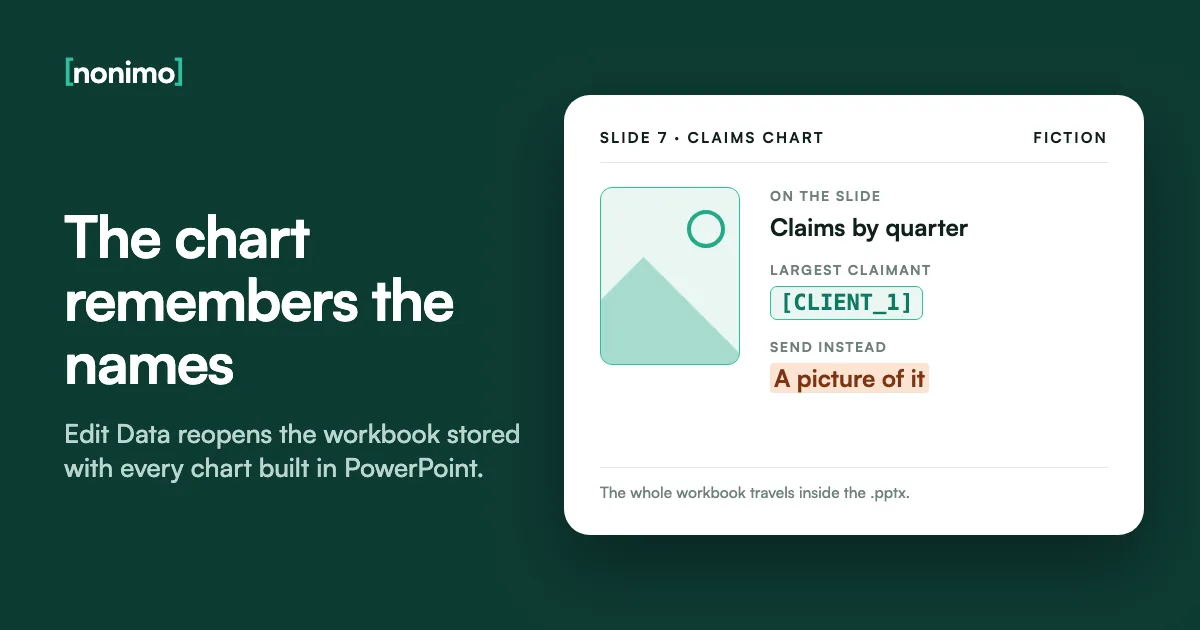
A chart created in PowerPoint keeps its numbers in a small workbook stored in the deck. Select the chart and Chart Design > Edit Data reopens it for whoever holds the file, columns the chart never plots included. In our test, that workbook held a “Largest claimant” column with a name the chart never drew.
The Document Inspector finds embedded objects but can’t remove them; Microsoft suggests a static picture instead. Copy the chart, use Paste Special on the Home tab, pick a picture format and delete the original. Cleaning the workbook itself, hidden rows and all is another job.
A linked chart stores where its source workbook lives, and that folder path can name a client. A picture is cleaner, as long as its labels carry no names, since software can read text inside an image. I’d limit what goes out to the picture and leave the live chart in the original.
Three ways a chart can sit in a deck
| How the chart got there | What travels with the .pptx | What the recipient can open |
|---|---|---|
| Built in PowerPoint (embedded) | The chart and its whole workbook | Every cell, through Edit Data |
| Linked to an Excel file | The chart and the source file's location | The path, and the workbook if they can reach it |
| Pasted as a picture | An image of the chart | Whatever the image shows, labels included |
Edit Data and Paste Special from Microsoft's PowerPoint help; linked objects storing only the source's location from its page on linked and embedded objects; the static picture advice from its Document Inspector page.
For US readers, the passport card redaction page shows text in an image being covered in the pixels themselves.
Slide master, layouts, off-slide objects and alt text
Text typed on the slide master appears on every slide built from its layouts, yet clicking it on an ordinary slide selects nothing. The master is the place I’d expect a client’s name to survive an otherwise careful clean-up. Open View > Slide Master and check the master and each layout below it.
Objects can also sit where the show never displays them: dragged past the slide edge, set to invisible, or tucked under another shape. Microsoft says the inspector misses objects covered by other objects and off-slide objects with animation effects. The Selection pane lists every object on a slide, hidden ones included.
Alt text is the quiet one, and PowerPoint can generate it automatically, so a team photo may carry a description nobody typed. Rewrite it around roles rather than deleting it, so screen reader users keep a description. The photos themselves are images, which AI assistants keep on their own terms.
Where to open each hidden spot
Route: View > Slide Master. The master is the top thumbnail; its layouts sit below. Delete or replace any name typed there, then close Master view.
Route: Insert > Header & Footer, Slide tab. Clear the Footer box and choose Apply to All. Text typed straight onto the master needs the Slide Master route as well.
Route: zoom out in Normal view and look around the slide. Delete anything parked outside it; animated objects there escape the inspector.
Route: Home > Select > Selection Pane, or Alt+F10. Every object on the slide is listed, so a name under a white rectangle shows up as its own entry.
Route: right-click the picture or chart and choose View Alt Text. Replace names with roles, such as "two site supervisors at the depot".
Route: click the SmartArt and edit its labels in the Text pane. In our test deck one name sat in two parts of the file, so replace the graphic with a picture if in doubt.
Menus from Microsoft's help on slide masters, footers, the Selection pane and alt text. For US readers, PHI and PII compared explains why a face on a team slide can count.
Document Inspector in PowerPoint: what it clears, and Mac and web
On Windows, go to File > Info > Check for Issues > Inspect Document, tick the categories, choose Inspect, then Remove All on each line you want cleared and Reinspect. Microsoft asks you to work on a copy, since removed content may not come back with Undo. The table lists all seven PowerPoint checks.
Microsoft’s inspector page applies to PowerPoint for Microsoft 365 and PowerPoint 2016 to 2024, and its Applies To list names no Mac or web edition. Its PDF page, by contrast, lists the Mac versions. On a Mac, the hand steps above plus the checker do the inspector’s job.
After an inspection, PowerPoint keeps stripping personal information each time that file is saved, co-author names on later comments included. A clean report also doesn’t make the deck anonymous: labels you can reverse are still personal data. I’d run the inspector last, as a check on the hand work.
The seven checks in PowerPoint's Document Inspector
| Check | What it removes | Limit Microsoft states |
|---|---|---|
| Comments and Annotations | Comments and ink | None listed |
| Document Properties and Personal Information | Properties, email headers, routing slips, server properties | None listed |
| Revision Tracking Data | Who edited the file and when | An older PowerPoint may not detect data added by Microsoft 365 |
| Invisible On-Slide Content | Objects formatted as invisible | Misses objects covered by other objects |
| Off-Slide Content | Text boxes, graphics, tables, clip art past the edge | Misses objects with animation effects |
| Presentation Notes | Text in the Notes section | Can't remove pictures in notes |
| Custom XML Data | Custom XML in the file | None listed |
Microsoft Support's Document Inspector page, PowerPoint section. Embedded objects, charts included, are found but not removed.
How to save PowerPoint as PDF without the notes
A PDF of the slides leaves the chart workbooks and the package’s inner parts behind, but what it includes depends on the export options. On Windows, choose File > Export > Create PDF/XPS Document > Create PDF/XPS, then Options. That dialog decides whether hidden slides, comments, ink and document properties come along.
A Mac leaves nothing to untick: Microsoft says notes and hidden slides can’t go into a PDF saved there at all. PowerPoint for the web offers Download as PDF, and Microsoft describes no options for it, so the cleaning has to happen in the deck.
Every word of slide text stays selectable in the PDF, a name under a shape included, so clean the slides first. Our walkthrough for redacting the exported file covers what’s left. For an AI job, I prefer a PDF of clean slides to the .pptx.
What each PowerPoint lets you keep out of the PDF
| Can you control… | Windows | Mac | Web |
|---|---|---|---|
| Speaker notes | Yes: set Publish what to slides | Never included | No options described |
| Hidden slides | Yes: a tick box in Options | Never included | No options described |
| Comments and ink | Yes: a tick box in Options | Not described | No options described |
| Document properties | Yes: under non-printing information | Not described | No options described |
| Route | File > Export > Create PDF/XPS Document > Create PDF/XPS > Options | File > Save As or File > Export, File Format: PDF | File > Export > Download as PDF |
Microsoft Support, Save PowerPoint presentations as PDF files. "Not described" means the page gives no setting either way, so clean that item in the deck first.
Sending a deck to ChatGPT or Claude: fewer slides, or only the text
Article 5(1)(c) of the GDPR, in EU and UK law, limits personal data to what the purpose needs. In the US, HIPAA’s minimum necessary standard in 45 CFR 164.502(b) asks the same of covered entities and their business associates. To polish one slide with an AI assistant, send that slide, not the forty around it.
Cutting first also shrinks the work: each slide you delete takes its notes, comments and objects with it. Outline view, on the View tab, shows only the text on your slides, a quick way to copy wording without notes or charts. Compare what you copied with the slides before relying on it.
Upload support varies too. Claude’s help page dated 23 July 2026 lists PDF, DOCX, CSV, TXT, HTML, ODT, RTF, EPUB, JSON and XLSX, with no PPTX, and says it extracts only text from the non-PDF files. How Claude treats your chats for training is a separate setting.
What two assistants say about uploaded files
| Assistant | Takes a .pptx? | What happens to the upload |
|---|---|---|
| Claude | Not in the listed document types | Text extracted from non-PDF documents; embedded images not read |
| ChatGPT | Presentations named among saved uploads | Saved to Library automatically; deleting the chat leaves the file there |
| Either, with cleaned text pasted | No file at all | Only the words you chose to paste |
Claude Help Center, Upload files to Claude, dated 23 July 2026; OpenAI's help page on Library in ChatGPT, read on 10 November 2026.
ChatGPT holds on to what you upload. OpenAI’s help page on Library says files uploaded in chats, presentations among them, are saved automatically, and deleting the chat does not delete the file; that happens in Library. What OpenAI does with your chats covers the rest.
No provider page we found says which parts of a .pptx its reader skips, so I assume an uploaded deck is read whole, notes included. I’d strip a full quarterly deck down to the five slides being edited before uploading anything. Copilot’s rules are in our guide to Copilot and your files.
For US readers, sector rules can narrow what a deck may carry, and AI tools under HIPAA explains the health-data case. The selector below points to our US pages by field.
For US readers: who is the deck about?
Health details on slides are a HIPAA matter when a covered entity or business associate holds them. See Nonimo for US healthcare teams.
Claims and policy numbers on a renewal deck are the usual risk. See Nonimo for US insurance agencies.
Case names on a pitch or strategy deck need care. See Nonimo for US law firms.
Whether redaction keeps privilege is a separate question: redaction and privilege in the US.
Client names and figures on an advisory deck need the same trimming. See Nonimo for US CPA firms.
Each panel points to one of our US pages, not to legal advice. Readers elsewhere can skip it.

Redact a PowerPoint in the tool above, then read the result
Nonimo’s PowerPoint tool, above this guide, covers slide text and speaker notes. You choose a .pptx, it is processed on our server, and names, emails and numbers come back as labels such as [PERSON_1]. Before downloading, you can make any item visible again.
You download the same PowerPoint, redacted, or its text as TXT. If it couldn’t read a part, such as a comment, a chart or a slide master, it tells you, so you know what still needs the steps above. Files over 10 MB go to the app, and the plans page covers regular use.
On a board pack, that list of unread parts matters more to me than the labels: it is the to-do list for the steps above. Decks that reach an AI every week are simpler in the desktop app, which keeps the slides on your Mac or PC; it’s on the Nonimo home page.
Web tool or desktop app for this deck?
The web tool on this page
- One .pptx at a time, up to 10 MB
- Processed on our server
- Slide text and speaker notes become labels you review
- Download the same PowerPoint, or its text as TXT
The desktop app, Mac or Windows
- For files over the web limit, or decks every week
- Runs on your own computer at a keystroke
- Original names come back when the AI answers
- What it keeps is on our security page
Limits and outputs as the tool states them on this page.
Sources
- Microsoft Support: the Document Inspector for presentations. The seven PowerPoint checks and their limits, embedded objects found but not removed, the Undo warning, an Applies To list with no Mac or web edition.
- Microsoft Support: Save PowerPoint presentations as PDF files. Windows Options, no notes or hidden slides from a Mac, Download as PDF on the web.
- Library of Congress: PPTX Transitional (Office Open XML). Slides as separate parts, a notes part per slide, masters as their own parts.
- Claude Help Center: Upload files to Claude. Listed document types without PPTX; text-only extraction from non-PDF files.
- OpenAI Help Center: Library in ChatGPT. Uploaded presentations saved automatically; deleting a chat leaves them in Library.
- 45 CFR 164.502(b), via the Legal Information Institute. Minimum necessary rule for covered entities and business associates, with its exceptions, such as disclosures for treatment.
- EUR-Lex: Regulation (EU) 2016/679, the GDPR. Article 5(1)(c), data minimisation.
- Nonimo test deck, 28 September 2026. Four invented slides unzipped with Python’s zipfile module: 39 parts, 15 with a name, 11 of them not slides.
Accessed 10 November 2026.
Related guides
Common questions
Can you redact text in PowerPoint?
Not with a built-in redact command. Delete or replace the words on a copy instead. A shape drawn over a name leaves the characters in the file for any program, or AI assistant, that opens it.
Do speaker notes show when you share a PowerPoint file?
Yes, they travel inside the .pptx. The audience never sees them during a slide show, but anyone who opens the file can read every note under every slide.
Are hidden slides included when you send a PowerPoint?
Yes, a hidden slide stays in the file. The slide show skips it, but the person who receives the deck can unhide it from the thumbnail pane in seconds.
Is there a Document Inspector in PowerPoint for Mac?
Not according to Microsoft. Its inspector page lists no Mac edition of PowerPoint. On a Mac, clear notes, comments and hidden slides by hand, then check the copy before it goes anywhere.
How do I save a PowerPoint as PDF without the notes?
On Windows, open Options in the Publish dialog and publish slides only. On a Mac, Microsoft says notes and hidden slides can't be saved into the PDF at all.
Can someone see the data behind a chart in PowerPoint?
Yes, if the chart was built in PowerPoint. Its workbook travels in the file, and Chart Design > Edit Data reopens it. Send a picture of the chart instead.
Can Claude read a PowerPoint file?
Not as an upload, going by Claude's help page dated 23 July 2026. PPTX is missing from its listed document types, so send a PDF of the slides or cleaned text.
Does the Nonimo tool read speaker notes?
Yes, it covers slide text and speaker notes. Personal details become labels you can review, and you download the same .pptx redacted or the text as TXT.