Remove track changes and comments in Word before it goes out
· Written and maintained by Nonimo
To remove track changes and comments in Word for Windows, open a copy of the document and go to the Review tab. In the Tracking group, open the Accept list and select Accept All Changes and Stop Tracking, or use the Reject list if the edits should not survive. Then select the down arrow by Delete and choose Delete all Comments in Document. Finally, run File, Info, Check for Issues, Inspect Document to catch anything left behind.
Hiding them is not the same thing. The No Markup view makes the page look finished, but Microsoft says it only hides the changes for the moment: they will be visible again the next time someone opens the document, and the comments are still in the file, each with its author’s name. A draft for the other side’s solicitors, a statement for a court bundle and a file bound for an AI tool all carry that risk.
This guide takes the steps in order for Word for Windows, Word for Mac and Word for the web, with the menu names as Microsoft’s UK support pages give them, checked on 4 October 2026. It is written for solicitors, HR teams and anyone in a UK office who sends drafts out of the building. Taking the client’s name out of the text itself is a different job, covered in our guide to redacting a Word document.
How to remove track changes and comments in Word for Windows
Microsoft’s page on accepting or rejecting tracked changes starts where this guide does: before you share a document, remove any markup by accepting or rejecting the changes. Comments are dealt with separately, and the Document Inspector checks what is left. The order matters, because each step assumes the one before it has been done.
The steps, on the copy and never on the original:
- Save a copy. File, Save As, and give it a name nobody could mistake for the original. Microsoft recommends running the Document Inspector on a copy because what it removes cannot always be restored, and accepting a change makes it permanent.
- Show all the markup. On the Review tab, switch the view to All Markup, which shows each reviewer’s changes in colour, so you can see what you are about to settle.
- Accept or reject everything. Go to Tracking, open the Accept list and select Accept All Changes and Stop Tracking. If the edits should not survive, open the Reject list and select Reject All Changes and Stop Tracking instead.
- Delete every comment. Still on the Review tab, select the down arrow by Delete and choose Delete all Comments in Document.
- Count what is left. Select Reviewing Pane. Microsoft says the summary at its top displays the exact number of visible tracked changes and comments that remain in the document. You want none.
- Run the Document Inspector. File, Info, Check for Issues, Inspect Document. Tick the boxes, select Inspect and choose Remove All next to whatever you want gone.
- Save, close and reopen. Hidden markup reappears when a document is opened, so opening the copy again is the honest test.
The Accept list also offers Accept All Changes Shown. On the iPad and iPhone, Microsoft explains that the equivalent option accepts the changes that are visible but not those that are hidden, so on a copy you mean to clean, pick the option without Shown in its name.
Accept or reject: which to choose
Accept makes a change permanent; reject gets rid of it. Those are Microsoft’s words, and for a contract going back to the other side they describe a real decision about the text, which belongs to whoever owns the draft. An engagement letter the client has marked up is the everyday case, and agreeing the clause on AI use in that letter early saves a round of tracked edits later.
For a copy going to an AI tool, either choice works as long as nothing is left pending. A pending deletion is the one state in which a removed name is still in the file while the page looks tidy.
Keyboard shortcuts
Microsoft’s screen reader pages for Word list keyboard routes that work for anyone, and they are quicker once learnt.
| To do this in Word for Windows | Press |
|---|---|
| Turn Track Changes off | Ctrl+Shift+E |
| Accept all changes | Alt+R, A, 2, L |
| Reject all changes | Alt+R, J, L |
| Delete all comments | Alt+R, D, O |
| Unlock tracking (asks for the password) | Alt+R, G, L |
Source: Microsoft Support, Use a screen reader to track and review changes, and Use a screen reader to add, read, and delete comments in Word, checked 4 October 2026.
No Markup hides tracked changes, it doesn’t remove them
The commonest mistake is to change the view and believe the job is done. Microsoft’s page on accepting or rejecting changes, checked on 4 October 2026, is blunt about it: “To remove tracked changes, you must accept or reject them. Choosing the No Markup view only temporarily hides changes. They will be visible again the next time someone opens the document.”
Word for Windows has four views in its Markup group. Simple Markup shows a red line in the margin, All Markup shows each reviewer’s changes in colour, No Markup shows the document as if the changes were already in, and Original shows the text as it was. Of Original, Microsoft adds that any tracked changes or comments not yet accepted, rejected or deleted remain in the document. None of the four is a cleaning tool.
| What you click | What you see | What stays in the file |
|---|---|---|
| No Markup | A clean page | Every tracked change |
| Original | The text before the edits | Every change and comment |
| Track Changes, off | Nothing new marked | Changes already tracked |
| Print, with Print Markup cleared | A clean printout | Everything, in the file |
| Resolve on a comment | The comment leaves the margin | The comment, in the Comments pane |
| Accept All Changes | Edits made permanent | Comments, which are not part of Track Changes |
| Delete all Comments in Document | No comments | Any pending tracked changes |
Source: Microsoft Support pages on tracked changes, accepting or rejecting changes and resolving comments, checked 4 October 2026.
Even a type of markup you untick in the Show Markup menu does not stay hidden: Microsoft says it displays automatically each time the document is opened, by you or by a reviewer. The same gap between what the page shows and what the file holds is behind failed redaction in PDFs too, as our guide to redacting a PDF shows layer by layer.
Turning off Track Changes keeps what is already tracked
Switching Track Changes off stops Word recording new edits and does nothing to the ones already recorded. Microsoft’s page says Word stops marking changes, “but the colored underlines and strikethroughs are still in the document”, and its accessibility page says the same: changes already tracked remain marked up until you remove them. The only way it gives to remove them permanently is to accept or reject them.
This catches people out with documents that arrive from elsewhere. Microsoft notes that a file can hold insertions and deletions made while tracking was on, even if Track Changes is now off. A contract that looks final, with the Track Changes button unlit, can still carry another firm’s earlier drafting.
Comments are a separate job: delete them, don’t resolve them
Microsoft is explicit that “Comments are no longer part of the Track Changes function.” Accepting every change settles the edits and leaves the comments to be dealt with on their own. That matters, because comments are where colleagues write what never reaches the body, and Microsoft’s Document Inspector page warns that comments and revisions let other people see who worked on a document, what reviewers said and what was changed.
To delete them all in Word for Windows, select the down arrow by Delete on the Review tab and choose Delete all Comments in Document. To remove a single thread, open More thread actions on it and choose Delete thread. Microsoft’s feedback page adds a warning worth taking literally: when you delete a comment, it is gone for good. Copy anything the matter still needs into a note that stays inside the firm first.
Resolved threads are still in the file
Resolving a comment feels like closing it, and it is not. Microsoft says a resolved thread remains in the document until you delete it; it is dimmed in the Comments pane and disappears from the margin, and “Resolving a thread doesn’t delete it.” Its page for Word for the web says the same: resolving hides a comment from active review but does not delete it.
So a document whose margin looks empty can still hold every resolved conversation. The List view of the Comments pane shows active and resolved comments together, which makes it the place to look before trusting the margin. The same trap sits in PowerPoint, where resolved threads stay in the deck until someone deletes them.
Excel works differently again, with threaded comments and notes that each carry their author’s name, and clearing both from a workbook has its own route.
Remove track changes from a Word document on a Mac or in Word for the web
The buttons sit in nearly the same places on a Mac and in a browser. Two differences matter: Word for Mac has no Document Inspector, and Word for the web cannot show you a file’s properties at all.
Word for Mac
The route, as Microsoft gives it for Word for Mac:
- On the Review tab, open the Accept list and select Accept All Changes, or Accept All Changes and Stop Tracking. To discard the edits, use the Reject list instead.
- To turn Track Changes off, select Track Changes again.
- To delete the comments, click the arrow by Delete and choose Delete all Comments in Document.
- To check the properties, open the File menu, choose Properties and read the Summary and Custom tabs.
Microsoft is direct about the missing step: “Word for Mac doesn’t have a document inspector. You can, however, view or change properties manually.” To remove a custom property, select it on the Custom tab and choose Delete. If there is a Windows machine in the office, running the Inspector there on the copy is a sensible last pass.
Word for the web
In a browser, the Review tab has a Tracking section with the same two lists: Accept, then Accept All Changes, or Reject, then Reject All Changes. To stop tracking, open the Track Changes list and select Off. Comments go as on the desktop, from the down arrow by Delete with Delete all Comments in Document. A single change can be accepted or rejected by right-clicking it.
What the browser cannot do is show or change the document’s properties. Microsoft says this is not currently possible in Word for the web and points you to the desktop app, through Editing, Open in Desktop App. On an iPad or iPhone, the Accept icon on the Review tab offers Accept All and Accept All & Stop Tracking.
If the document was last saved in LibreOffice rather than Word, the menus are different again, and our guide to .odt, .rtf and CSV files covers its comments and tracked changes.
When Word won’t let you accept the changes
Sometimes Word will not let you accept or reject anything, and Microsoft documents two reasons for it. The first is Lock Tracking: someone has protected Track Changes with a password. While it is locked, anyone opening the document can view the changes but cannot turn the feature off, and cannot accept or reject them.
On Windows, the lock sits under Review, Tracking, Track Changes, Lock Tracking, and unlocking it asks for the password. On a Mac it is Review, Protect, Protect Document, where you clear Protect document for and enter the password. Without the password the changes stay, so ask whoever locked the document.
The second reason is a document shared with you for review. Microsoft says you may not be able to turn off Track Changes in that case; to edit without tracking, save a copy or ask the person who sent it to share it again with review mode turned off.
Such files often live in OneDrive, where Microsoft says everyone’s changes are saved to a single file, and what Copilot can reach in that shared space is worth knowing before anyone asks it about the draft.
The Document Inspector: one last check on the copy
Microsoft suggests the Document Inspector as the final check after accepting or rejecting, because it “checks for tracked changes and comments, hidden text, personal names in properties, and other information.” On Windows it is under File, Info, Check for Issues, Inspect Document. Tick the kinds of content to inspect, select Inspect, review the results and select Remove All next to each kind you want gone, then Reinspect or Close.
For this job the box that matters is Comments, Revisions, Versions, and Annotations, which finds and removes comments, revision marks from tracked changes, document version information and ink annotations. The others on Microsoft’s list for Word cover document properties and personal information, headers, footers and watermarks, hidden text, custom XML data and invisible content.
Two warnings come with it. Run it on a copy, because Microsoft says it is not always possible to restore what it removes, and Undo may not bring it back. And it has limits Microsoft names itself: it cannot detect text hidden by other methods, such as white text on a white background, or objects covered by other objects.
Properties and the personal information Word adds
Document properties are the other layer. Microsoft describes them as details such as author, subject and title, plus information Word maintains by itself, such as the name of the person who most recently saved the document and the date it was created. The Inspector’s Document Properties and Personal Information box removes them, along with the user name and the template name.
Word for Windows also has a setting called Remove personal information from file properties on Save, under File, Options, Trust Center, Trust Center Settings, Privacy Options. Microsoft says it is off in Word and that the privacy options moved in version 1904; either way, the Inspector removes personal information on demand. What each field holds, and how to clear a PDF as well, is in our guide to removing metadata from PDF and Word files.
Why it matters in the UK: the other side, the court and the ICO
In a UK office the file usually goes to someone with every reason to read it closely. A contract sent back to the other side’s solicitors with a deleted clause still pending as a tracked deletion shows them the position you moved from. A witness statement whose comments say what a colleague doubted is not a document you want in a bundle.
Microsoft’s own summary of the risk is that this information can show who worked on a document, reviewers’ comments and the changes made, “things that you might not want to share outside of your team.” Courts have also shown interest in how a statement was drafted, as our guide to AI in court documents explains. Keep the drafts, with their history, on the file; send the clean copy.
What the ICO says about markup
The ICO’s guidance on disclosing documents securely, published on 31 July 2025, names comments and tracked changes among the personal information a sender can add to a document without noticing. It points out that the way markup is displayed can be changed so that it is hidden from view, and that markup may reveal personal information that it is not appropriate to disclose.
Its expectations are practical: check documents for hidden information before disclosing them, and know how to view comments and remove them. The guidance is written for documents released to the public, and the ICO notes it is under review after the Data (Use and Access) Act, but the mechanics are the same when the recipient is a client, another firm or an AI provider.
If the markup has already gone out
If a document with personal information in its comments or tracked changes reaches someone who should not have it, it fits the ICO’s description of an accidental breach. A personal information breach, in its guidance, is a breach of security leading to the unauthorised disclosure of personal information, among other things. Accidental breaches, in its words, occur whenever you accidentally disclose personal information to someone who is not authorised to see it.
Its guidance says you must record the breach, report it to the ICO without undue delay and, where possible, within 72 hours of becoming aware of it where it is likely to cause a risk to someone’s rights and freedoms, and tell the people affected without undue delay if the risk is high.
The cheaper route is the one at the top of this page: accept, delete and inspect, on a copy, before anything leaves.
Remove track changes and comments in Word before an AI tool reads the file
The same reasoning applies when the recipient is ChatGPT, Claude or Copilot. Uploading a .docx sends the file, not a picture of the page, so a deleted sentence waiting in a tracked change and a comment with its author’s name travel with it. What each tool then reads and keeps is another question; the point is that you cannot rely on the view you left the document in.
We checked the file side of this for the attendance note in our Word redaction guide: a former name typed into a tracked deletion was still in the .docx when we unzipped it and read every part. What a provider keeps once the file arrives depends on the account, as our guide to ChatGPT and UK users’ data sets out.
Once the markup has gone, what remains is the body: the names, dates and numbers you can see on the page. Which of them to take out before AI depends on the task, and for most tasks it is more than the name.
Then cover what the page still shows, with Nonimo
A Word file cleared of tracked changes and comments still carries the client in its body. Nonimo covers that part, replacing each name and number with a marker such as [PERSON_1], so the AI tool can still follow who did what.
For client files, the Nonimo app for Windows and Mac does the work on your own computer, and the document does not leave it. It shows you the covered text ready to paste into the AI tool, and lets you download a covered copy of the same Word document, with its formatting. Our security page sets out what the app keeps and what it sends.
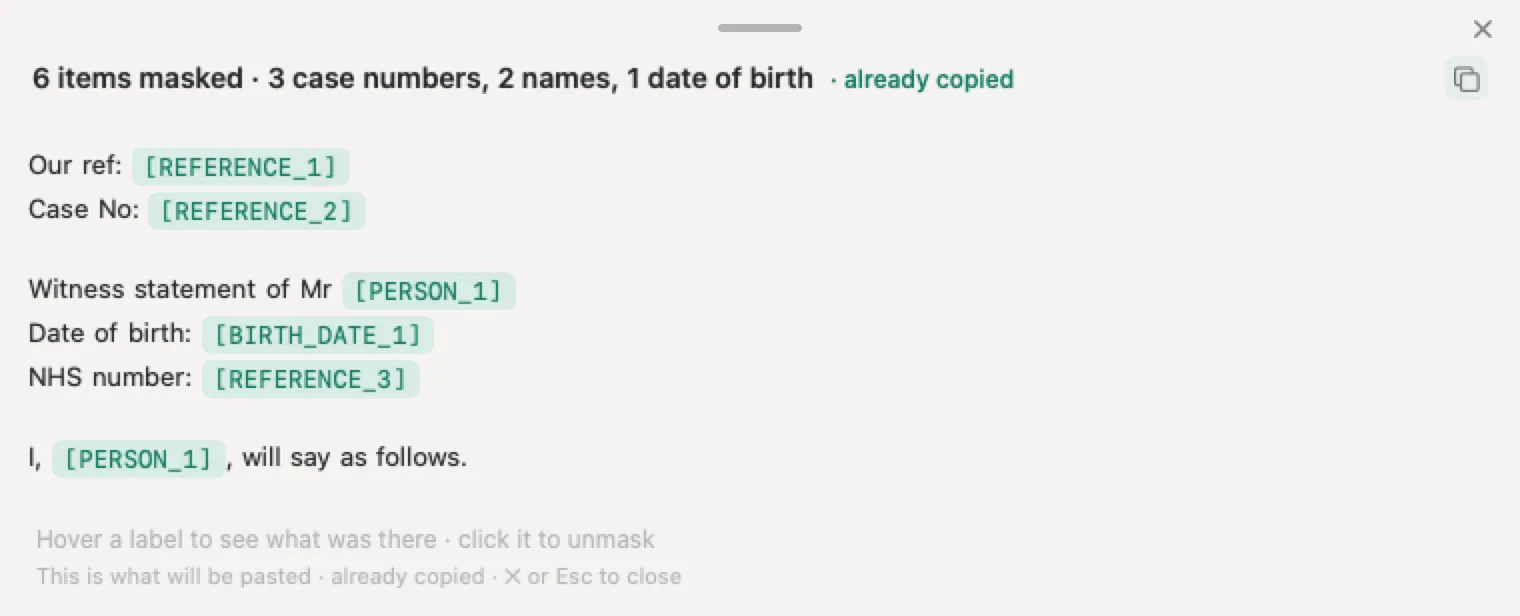
For a single document, the Word tool in our guide to redacting a Word document takes the .docx and gives you back the same Word file with the details covered. The tool has its own privacy notice.
Sources
- Accept or reject tracked changes in Word, Microsoft Support, checked 4 October 2026: remove markup before sharing by accepting or rejecting; No Markup only temporarily hides changes, visible again the next time someone opens the document; Accept All Changes and Reject All Changes on Windows, Mac and the web; right click a change in the web; run the Document Inspector as a final check.
- Track changes in Word, Microsoft Support, checked 4 October 2026: Review, Tracking, Track Changes; turning it off leaves the tracked changes in the document; the Accept and Reject lists, including Accept All Changes and Stop Tracking; the four markup views and the Original view note; Show Markup comes back on opening; Print Markup; Reviewing Pane summary; Lock Tracking; Protect Document on the Mac; Off in Word for the web; documents shared for review; comments are no longer part of Track Changes.
- Accept tracked changes, Microsoft Support, checked 4 October 2026: accept makes a change permanent, reject gets rid of it; a document can hold tracked insertions and deletions even when Track Changes is off.
- Use a screen reader to track and review changes in a document in Word, Microsoft Support, checked 4 October 2026: tracked changes remain until removed; accepting or rejecting is the only way to remove them permanently; Lock Tracking blocks turning off, accepting and rejecting; Ctrl+Shift+E, Alt+R, A, 2, L, Alt+R, J, L and Alt+R, G, L.
- Use a screen reader to add, read, and delete comments in Word, Microsoft Support, checked 4 October 2026: Alt+R, D, O deletes all comments; a resolved thread is dimmed and leaves the margin; resolving a thread does not delete it.
- Delete comments, Microsoft Support, checked 4 October 2026: the down arrow by Delete and Delete all Comments in Document, in Microsoft 365 for Windows and Mac and on the web; More thread actions and Delete thread.
- Give and respond to feedback in shared Word documents, Microsoft Support, checked 4 October 2026: a deleted comment is gone for good; a resolved thread remains in the document until deleted; changes in OneDrive are saved to a single file.
- Resolve comments in Word for the web, Microsoft Support, checked 4 October 2026: resolving hides a comment from active review but does not delete it.
- Remove hidden data and personal information by inspecting documents, presentations, or workbooks, Microsoft Support, checked 4 October 2026: File, Info, Check for Issues, Inspect Document; work on a copy, Undo may not restore; the inspectors for Word and what each removes; white text and covered objects are not detected; what comments, revisions and properties reveal.
- Inspect document, Microsoft Support, checked 4 October 2026: Word for Mac does not have a document inspector, properties under File, Properties; properties cannot be viewed or changed in Word for the web, Editing, Open in Desktop App.
- View my privacy options in Microsoft Office, Microsoft Support, checked 4 October 2026: Remove personal information from file properties on Save, off in Word; privacy options moved from version 1904; the Document Inspector removes personal information on demand.
- How do we avoid an accidental breach when personal information is ‘hidden’ in documents?, ICO, published 31 July 2025, checked 4 October 2026: comments and tracked changes added without noticing; markup can be hidden from view and may reveal personal information; check documents before disclosing and know how to remove comments; guidance under review after the Data (Use and Access) Act.
- What is an accidental personal information breach?, ICO, published 31 July 2025, checked 4 October 2026: definition of a personal information breach and of an accidental breach; record it, report within 72 hours where possible if likely to risk rights and freedoms, tell those affected if the risk is high.
Nonimo is the software that does this on your own computer: it masks client names and IDs before your text reaches ChatGPT. No account needed, and the app does it without your files leaving your machine.
Common questions
How do I remove track changes and comments in Word?
Work on a copy. On the Review tab, open the Accept list under Tracking and select Accept All Changes and Stop Tracking, or reject them all if the edits should go. Then select the down arrow by Delete and choose Delete all Comments in Document. Finish with File, Info, Check for Issues, Inspect Document. Once the markup has gone, Nonimo can cover the names still sitting in the body text.
Does the No Markup view remove tracked changes?
No. Microsoft says choosing the No Markup view only hides the changes for the moment, and they will be visible again the next time someone opens the document. The only way it gives to remove tracked changes permanently is to accept or reject them. Until you do, a deleted sentence is still in the file, underneath a page that looks perfectly clean.
If I turn off Track Changes, are the changes removed?
No. Turning it off stops Word marking new edits, and Microsoft says the changes already tracked remain marked up in the document until you remove them. Use Accept All Changes and Stop Tracking, which settles the existing changes and stops tracking in one go, or accept or reject them first and then switch Track Changes off from the Tracking group.
Are comments deleted when I accept all changes?
Treat them as a separate job. Microsoft says comments are no longer part of the Track Changes function, and its note on the Original view says that comments which have not been deleted remain in the document. Delete them with the down arrow by Delete and Delete all Comments in Document, after copying anything the matter still needs into a note kept inside the firm.
Do resolved comments stay in a Word document?
Yes. Microsoft says a resolved thread remains in the document until you delete it: it is dimmed in the Comments pane and drops out of the margin, but resolving it does not delete it. The List view of the Comments pane shows active and resolved comments together, so check there, then use Delete all Comments in Document on the copy you are sending.
How do I remove track changes in Word for Mac?
On the Review tab, open the Accept list and select Accept All Changes, or Accept All Changes and Stop Tracking, and select Track Changes again to switch it off. Delete the comments from the arrow by Delete. Microsoft says Word for Mac does not have a document inspector, so check the properties by hand under File, Properties, or run the Inspector on a Windows machine.
Why can't I accept or reject tracked changes?
Usually because tracking is locked or the file was shared with you for review. Microsoft says that while Lock Tracking is on, anyone opening the document can view the changes but cannot turn tracking off or accept or reject them, and the password unlocks it. For a document shared for review, save a copy or ask the sender to share it again with review mode off.
Should I remove tracked changes before uploading a Word file to an AI tool?
Yes. An upload sends the .docx itself, so tracked deletions and comments, with their authors, go along whatever view you left on screen. The ICO expects organisations to check documents for hidden information such as comments and tracked changes before disclosing them. Clean a copy first, then let Nonimo replace the names in the body with markers before the text reaches the tool.