How to remove track changes in Word permanently
· Written and maintained by Nonimo
To remove track changes in Word permanently, you accept or reject them; no view setting does it. In Word for Windows, on a copy of the file, open the Review tab, go to Tracking, then Accept, and choose Accept All Changes and Stop Tracking. Next, select the down arrow by Delete and choose Delete all Comments in Document. Finish with File > Info > Check for Issues > Inspect Document, and remove what it reports.
That is the whole job, and it matters most in the minute before a document leaves your hands: attached to an email for the other side’s solicitor, sent to a client for signing, or uploaded to ChatGPT, Copilot or Claude for a summary. Whatever you have not removed goes with the file. Deleted wording sits inside it, and Microsoft warns that the file can show who worked on the document and what reviewers said.
The steps below follow Microsoft’s own support pages, checked on 4 October 2026, for Word for Windows, Word for Mac and Word for the web. Menu names are written exactly as Microsoft writes them. If the file is about to go into an AI tool, the details left in the visible text are a second job, and our Word redaction guide deals with that one.
How to remove track changes in Word permanently, step by step
Microsoft puts the rule in one sentence on its screen reader page for Word: “The only way you can remove tracked changes permanently in a document is to accept or reject them.” Everything in this section serves that sentence, in the order that saves you doing anything twice. These steps remove track changes and comments in Word for Microsoft 365 on Windows.
- Save a copy. Go to File > Save As and give the copy a new name. Microsoft recommends running the Document Inspector on a copy, because it is not always possible to restore the data it removes.
- Settle every change. On the Review tab, go to Tracking, select Accept and choose Accept All Changes and Stop Tracking. If some edits should not survive, reject those first, or use Reject All Changes from the Reject list.
- Count what is left. Select Reviewing Pane on the Review tab. Microsoft says the summary at the top shows the exact number of visible tracked changes and comments that remain.
- Delete every comment. On the Review tab, select the down arrow by Delete, then Delete all Comments in Document.
- Inspect the copy. Go to File > Info > Check for Issues > Inspect Document, tick the inspectors, select Inspect, then Remove All next to each result you want gone.
- Reopen and look. Close the copy, open it again and check the Reviewing Pane once more. Microsoft notes that hidden markup displays again each time a document is opened, so a clean reopen is a fair test.
Keyboard users have shortcuts for most of this. Microsoft’s screen reader pages give Alt+R, A, 2, L to accept all changes and Alt+R, D, O to delete all the comments, and Ctrl+Shift+E turns Track Changes off. They are worth learning if your practice turns documents around all day, as a busy accounting practice does at tax time.
When Word will not let you accept: Lock Tracking
Sometimes a document arrives with tracking locked. Microsoft describes Lock Tracking, under Review > Tracking > Track Changes, as a password that keeps others from turning Track Changes off. While it is on, anyone opening the document can view the changes, but they cannot turn off the feature and cannot accept or reject changes. In practice that means asking whoever set the password.
A document shared with you for review can behave the same way. Microsoft says you may not be able to turn off Track Changes in that case, and that you will need either to save a copy or to ask the sender to share it again with review mode turned off.
No Markup hides tracked changes, it does not remove them
The most common mistake is to change the view and think the job is done. The Markup options on the Review tab in Word for Windows are Simple Markup, All Markup, No Markup and Original, and the two clean looking ones are exactly that: ways of looking at the same file.
Microsoft’s page on accepting and rejecting changes carries the warning at the top: “Choosing the No Markup view only temporarily hides changes. They will be visible again the next time someone opens the document.” Its page on tracking changes goes further when it describes the Original view: any tracked changes or comments that have not been accepted, rejected or deleted remain in the document.
Printing is no different. Clearing Print Markup under File > Print gives you a clean page on paper, and Microsoft’s page on tracking changes adds that hiding changes doesn’t remove them from the document. A clean printout of a file with live edits is still a file with live edits.
We saw what that means in the test file behind our guide to covering client details in a Word document, built on 28 September 2026. A colleague had deleted an old address with Track Changes on. In a clean view the sentence was gone; inside the file it was stored whole, and LibreOffice printed it back out when it saved the file as plain text.
What each button and view leaves behind
The confusion comes from the fact that half the controls on the Review tab change what you see and the other half change what the file holds. This is how they divide, on Microsoft’s own descriptions.
| Button or view | What goes | What stays in the file |
|---|---|---|
| No Markup view | the marks, on your screen only | every change, shown again on reopening |
| Print without markup | the marks, on paper only | every change and comment |
| Turn off Track Changes | nothing already recorded | all tracked changes made so far |
| Accept All Changes | the marks; edits become ordinary text | comments, a separate feature |
| Resolve a comment | the comment, from the margin | the comment, in the Comments pane |
| Delete all Comments in Document | every comment | any change not yet accepted or rejected |
| Document Inspector, Remove All | what each ticked inspector finds | text hidden by other methods, such as white on white |
Source: Microsoft Support (Australia), Word pages on tracking, accepting, comments and the Document Inspector, checked 4 October 2026.
Only the rows that change the file do the job; the views and the printout change what you see and nothing else. If the file is going out as a PDF, settle it first anyway, because a PDF has leftovers of its own.
Turning Track Changes off keeps every change already tracked
Switching the feature off feels like the tidy thing to do, and it settles nothing. In Word for Windows the switch is Review > Tracking > Track Changes. Microsoft describes the result plainly: Word stops marking changes, but the coloured underlines and strikethroughs are still in the document. Its screen reader page says the same in other words: all changes that were already tracked remain marked up until you remove them.
The reverse also catches people out. Microsoft points out that even if Track Changes is currently turned off, a document may still contain insertions and deletions made while it was on. A file that comes back from the other side looking clean, with the feature off, can still carry their edits and yours.
So the switch belongs at the end of the job, which is why Accept All Changes and Stop Tracking is the most useful entry in the Accept list: it settles the edits and turns tracking off in one step.
Turn it off before your own deletions
There is one moment when switching it off comes first. If you are about to delete client details yourself, tracking has to be off, or each of your deletions becomes one more tracked change with the detail still inside it. A tax file number taken out with tracking on is a tax file number kept, and the rules on TFNs in a file are strict enough that it matters.
The safe pattern for a document you are cleaning is: accept or reject what is there, stop tracking, then make your own edits on a file that is no longer recording them.
Delete all comments in Word, resolved ones included
Comments are their own job. Microsoft says plainly that comments are no longer part of the Track Changes function, so a pass that settles the edits leaves you a second pass to make. The route is the same in Word for Windows, Word for Mac and Word for the web: on the Review tab, select the down arrow by Delete, then Delete all Comments in Document.
For a single comment, Microsoft’s Delete comments page uses More comment actions (…) and then Delete comment; for a whole conversation, More thread actions (…) and then Delete thread. Its page on feedback in shared documents adds that when you delete a comment, it is gone for good, which is another reason to do it on the copy and keep the discussion in the original.
Resolved is not deleted
Resolving a comment is a filing step, not a removal. Microsoft says a resolved thread remains in the document until you delete it, and its Word for the web page is explicit: resolving a comment hides it from active review but does not delete it. Resolved comments drop out of the margin and stay in the Comments pane.
Microsoft’s page on modern comments explains why they are easy to miss. The contextual view shows active comments and hides resolved ones, while the list view includes all active and resolved comments. If you check a document by eye, check it in the list view.
Every comment also carries its author. Microsoft’s Document Inspector page warns that comments and revisions can let other people see the names of people who worked on your document, comments from reviewers and the changes that were made. Slide decks have the same habit, and comments in a PowerPoint file name their reviewer even when the remark says almost nothing.
Word for Mac and Word for the web
The two other versions of Word handle tracked changes in much the same way, with different menus and one important gap on each.
Word for Mac
On a Mac, Track Changes sits on the Review tab, and Microsoft’s instruction for turning it off is to select Track Changes again. To accept everything, go to the Review tab and choose Accept All Changes from the Accept list; Microsoft’s tracking page also lists Accept All Changes and Stop Tracking there. Comments go the same way as on Windows: the down arrow by Delete, then Delete all Comments in Document.
The Mac’s lock is Protect Document, under Review > Protect, with a password. Microsoft says that while tracked changes are locked you can’t turn off tracking and can’t accept or reject changes; to unlock, untick Protect document for and enter the password.
The gap is the inspector. Microsoft’s Inspect document page says it in one line: “Word for Mac doesn’t have a document inspector.” Properties are changed by hand instead, from the File menu, then Properties, on the Summary tab, with custom fields deleted from the Custom tab. Which properties are worth clearing is set out in our guide to Word and PDF metadata.
Word for the web, iPad and iPhone
In the browser, the switch is on the Review tab: select Track Changes, then Off from its list. To accept everything, go to the Tracking section of the Review tab and choose Accept All Changes from the Accept list. Comments are deleted from the down arrow by Delete, as elsewhere. Microsoft also lets you right-click a single change to accept or reject it.
The gap here is properties. Microsoft says viewing or changing document properties isn’t currently possible in Word for the web, and points you to Editing > Open in Desktop App for that part. When a file lives in OneDrive or SharePoint and gets edited in the browser, finish the clean in Word for Windows, where the Document Inspector is.
On an iPad or iPhone, Microsoft’s page gives Accept All & Stop Tracking under the Accept icon on the Review tab, which does both jobs at once. Inside a Microsoft 365 tenancy, Copilot raises questions of its own about confidential files, separate from what the document itself stores.
The Document Inspector: one last pass for what you cannot see
The Document Inspector is Microsoft’s check for hidden content, and Microsoft suggests it as the final step after accepting or rejecting: it looks for tracked changes and comments, hidden text, personal names in properties and other information. In Word for Windows, the full route is File > Info > Check for Issues > Inspect Document.
In the Document Inspector box you tick the kinds of hidden content to look for, select Inspect, review what it reports, and select Remove All next to each type you want gone. Then Reinspect, or Close. Microsoft warns that removed content may not come back with Undo, so this is another reason the copy matters.
Microsoft’s page names six for Word: Comments, Revisions, Versions, and Annotations; Document Properties and Personal Information; Headers, Footers, and Watermarks; Hidden Text; Custom XML Data; and Invisible Content. The first of those is the one that catches anything you missed in the earlier passes.
What it cannot see
Two limits are written into Microsoft’s own table. The Hidden Text inspector cannot detect text hidden by other methods, such as white text on a white background, and the Invisible Content inspector cannot detect objects covered by other objects. The headers inspector removes the information in every header and footer, which in a letter includes your letterhead, so editing a header by hand is often the better choice.
Microsoft describes the inspector as a tool for hidden data and personal information. The names and numbers in plain view call for a review of their own, and the identifiers to take out before an AI tool are listed in a separate guide.
Properties and the author’s name
Document properties are the file’s description of itself. Microsoft lists author, subject and title, plus details Word keeps by itself, such as the name of the person who most recently saved the document. The Document Properties and Personal Information inspector clears them.
Word also has a setting, Remove personal information from file properties on Save, which Microsoft says is off in Word. Its privacy options page gives the route as File > Options, then Trust Center > Trust Center Settings > Privacy Options, notes that from version 1904 the privacy options have moved, and adds that you can still remove personal information on demand with the Document Inspector. Each field is covered in our metadata guide for Word and PDF files.
Why remove track changes in Word permanently before a file leaves
Microsoft’s own advice is simple: when you share copies of documents with clients or colleagues, review them for hidden data or personal information and remove it. In an Australian practice the moments are familiar. A contract goes back to the other side with your marked up position. A letter of advice goes to the client with a partner’s comments still in the margin. A working paper goes to another adviser.
Each of those documents has usually been through several hands. A draft that came back from the other side carries their tracked edits as well as yours, and a template reused from an old matter can carry the old client’s name in a deleted paragraph. None of it shows in a clean view, and all of it travels.
The same file, uploaded
Uploading a Word document to an AI tool is one more way of sending it, and the same rule applies: the file goes whole. We make no claim about what any particular AI service reads out of a .docx, and Microsoft’s pages do not address it. The safe assumption is that whoever or whatever opens the file can receive the deleted wording, the comments and the names attached to them.
How long a chatbot then keeps what it received is a separate question, worked through in our guide to what ChatGPT keeps. Clearing the edits and comments first means there is less in the file to worry about later.
Tracked changes, comments and the Privacy Act: APP 6 and the OAIC
Leftover edits are more than an embarrassment under Australian law. The Privacy Act 1988 defines personal information as information or an opinion about an identified individual, or one who is reasonably identifiable, whether the information or opinion is true or not. That definition reaches straight into a tracked document.
A deleted sentence with a client’s old address is still personal information, even though it was struck out for being wrong. A reviewer’s comment about how a client is handling a dispute is an opinion about that client. The author name on each comment is personal information about your own staff. None of it stops counting because Word dims it or strikes it through.
What the OAIC says about AI tools
The OAIC’s guidance on commercially available AI products, updated on 17 January 2025, applies APP 6 to personal information put into an AI system: entities may use or disclose personal information only for the primary purpose it was collected for, unless they have consent or a reasonably expected related secondary use. It then goes further, recommending as a matter of best practice that organisations “do not enter personal information, and particularly sensitive information, into publicly available AI chatbots”.
A deleted paragraph and a comment are entered just as surely as the body text when the file is uploaded. The APP 6 test, worked through for everyday tools, is in our guide to which AI tools the Act allows.
Does the Reviewing Pane show any tracked changes?
YesAccept or reject them, then stop tracking.
NoGo to the next question.
Are there comments, including resolved ones in the list view?
YesDelete all Comments in Document.
NoGo to the next question.
Have you run the Document Inspector on the copy?
YesReopen the copy and check once more.
NoFile, Info, Check for Issues, Inspect Document.
Then read the body as a stranger would: the names you can see are the part still to cover.
APP 11 and files that carry more than they show
APP 11 asks for reasonable steps to protect personal information, and the OAIC’s guide to securing it asks whether there are clear procedures for “the identification and removal of embedded personal information from files before they are published online”. That question was written about publishing, and the habit it describes is the one this guide sets out.
If the uncleaned file has already gone, write down what was sent, to whom and when, and tell whoever handles privacy that day. Whether it must be notified is its own test, set out in the guide to client data in a chatbot and data breaches. This describes the Act in general terms; the person responsible for privacy in your practice applies it to a given file.
What is left once the file is clean, and how Nonimo covers it
Accepting, deleting and inspecting leave you with the document you meant to send: the body, with the client’s names, numbers and addresses in plain sight. That part is what Nonimo covers.
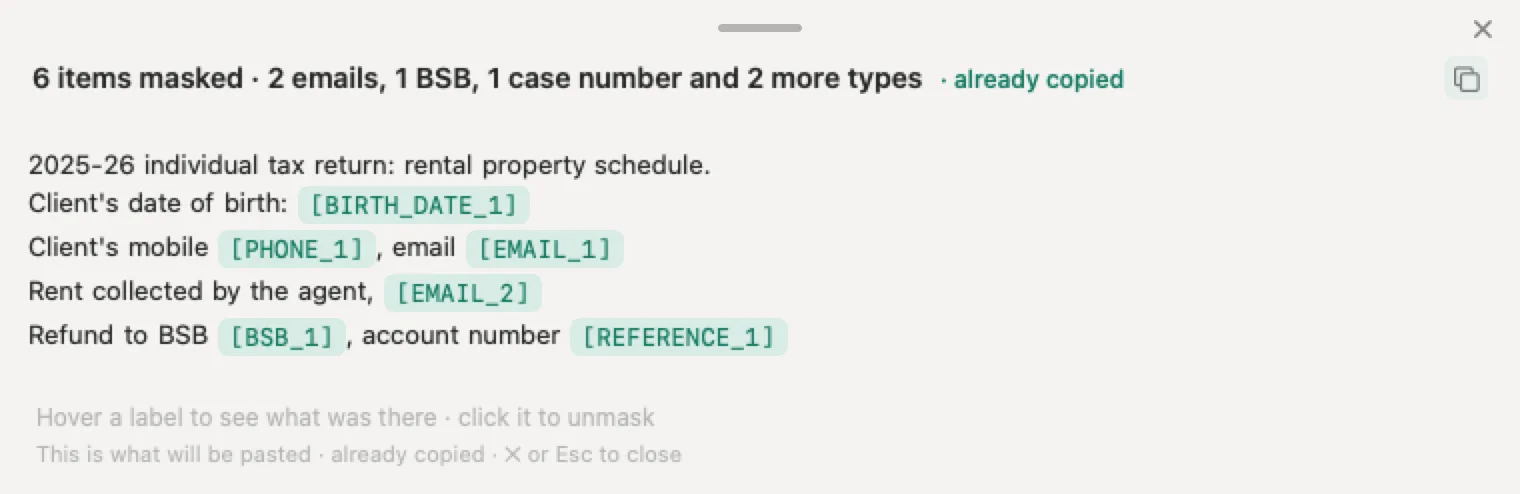
The Word tool in our guide to redacting a Word document takes the .docx and gives you back the same Word file, with the details replaced by markers such as [PERSON_1]. The tool has its own privacy notice.
The Nonimo app, for Windows and Mac, covers on your own computer, so the document does not leave it. It shows you the covered text ready to paste into the AI tool and lets you download a covered copy of the same Word file, formatting included. When the reply comes back with the labels in it, the app puts the real details back on your screen. What it keeps, and where, is on the security page.
Sources
- Microsoft Support (Australia), Use a screen reader to track and review changes in a document in Word. “The only way you can remove tracked changes permanently in a document is to accept or reject them”; tracked changes remain marked up after tracking is turned off; Lock Tracking; Ctrl+Shift+E and Alt+R, A, 2, L. Checked 4 October 2026. support.microsoft.com
- Microsoft Support (Australia), Accept or reject tracked changes in Word. No Markup only temporarily hides changes; Accept All Changes and Reject All Changes on Windows, Mac and the web; the Document Inspector as the final check. Checked 4 October 2026. support.microsoft.com
- Microsoft Support (Australia), Track changes in Word. The four Markup views and the Original view; Accept All Changes and Stop Tracking; turning tracking off leaves the marks; Print Markup; the Reviewing Pane count; Lock Tracking; Protect Document on Mac; comments are no longer part of Track Changes. Checked 4 October 2026. support.microsoft.com
- Microsoft Support (Australia), Accept tracked changes. A document can contain tracked insertions and deletions even when Track Changes is off. Checked 4 October 2026. support.microsoft.com
- Microsoft Support (Australia), Delete comments. Delete all Comments in Document, Delete comment and Delete thread, for Microsoft 365, Mac and the web. Checked 4 October 2026. support.microsoft.com
- Microsoft Support (Australia), Give and respond to feedback in shared Word documents. A deleted comment is gone for good; a resolved thread remains in the document until deleted. Checked 4 October 2026. support.microsoft.com
- Microsoft Support (Australia), Resolve comments in Word for the web. Resolving hides a comment from active review but does not delete it. Checked 4 October 2026. support.microsoft.com
- Microsoft Support (Australia), Using modern comments in Word. The contextual view hides resolved comments; the list view shows them all. Checked 4 October 2026. support.microsoft.com
- Microsoft Support (Australia), Remove hidden data and personal information by inspecting documents, presentations, or workbooks. The Document Inspector route and steps, its six inspectors for Word, what it cannot detect, working on a copy, and why to inspect before sharing. Checked 4 October 2026. support.microsoft.com
- Microsoft Support (Australia), Inspect document. Word for Mac has no document inspector; properties by hand on Mac; properties not available in Word for the web. Checked 4 October 2026. support.microsoft.com
- Microsoft Support (Australia), View my privacy options in Microsoft Office. Remove personal information from file properties on Save, off in Word; the Trust Center route; privacy options moved from version 1904. Checked 4 October 2026. support.microsoft.com
- OAIC, Guidance on privacy and the use of commercially available AI products (21 October 2024, updated 17 January 2025). APP 6 applied to personal information input into an AI system, and the best practice recommendation on publicly available AI chatbots. oaic.gov.au
- OAIC, What is personal information? The section 6(1) definition: information or an opinion, whether true or not, about an identified or reasonably identifiable individual. oaic.gov.au
- OAIC, Guide to securing personal information. The APP 11 question on removing embedded personal information from files before they are published online. oaic.gov.au
Nonimo is the software that does this on your own computer: it masks client names and IDs before your text reaches ChatGPT. No account needed, and the app does it without your files leaving your machine.
Common questions
How do you remove track changes in Word permanently?
Accept or reject them, because Microsoft says that is the only way to remove tracked changes permanently. In Word for Windows, on a copy, go to Review, Tracking, Accept, then Accept All Changes and Stop Tracking. Delete the comments from the arrow by Delete, then run File, Info, Check for Issues, Inspect Document. Once the file is clean, Nonimo can cover the client details left in the text.
Does turning off Track Changes remove the changes?
No. Microsoft says that once Track Changes is off, Word stops marking new changes, but the underlines and strikethroughs already recorded stay in the document until you remove them. A file can carry tracked edits even while the feature shows as off. Accept or reject everything first; the Accept All Changes and Stop Tracking option does both jobs in a single step.
Does No Markup hide changes from the person who receives the file?
Only until they open it. Microsoft's warning is that choosing the No Markup view only temporarily hides changes, and that they are visible again the next time someone opens the document. The Original view works the same way: anything not accepted, rejected or deleted remains in the file. Printing without markup gives you clean paper and leaves the file exactly as it was.
Are comments part of track changes in Word?
Not any more. Microsoft says comments are no longer part of the Track Changes function, so clearing a document takes two passes: accept or reject the changes, then delete the comments. In Word for Windows, Mac and the web the route is the down arrow by Delete on the Review tab, then Delete all Comments in Document. Microsoft adds that a deleted comment is gone for good.
Do resolved comments stay in a Word document?
Yes. Microsoft says a resolved thread remains in the document until you delete it, and that resolving a comment hides it from active review but does not delete it. Resolved comments leave the margin and stay in the Comments pane, with their text and their author's name. Delete them with the rest before the file goes to a client, the other side or an AI tool.
Why can't I accept tracked changes in Word?
Tracking may be locked. Microsoft explains that with Lock Tracking on, anyone opening the document can view the changes but cannot turn the feature off, and cannot accept or reject changes. Unlocking needs the password, so ask whoever set it. A document shared with you for review can also stop you turning Track Changes off, and Microsoft suggests saving a copy.
Does Word for Mac have a Document Inspector?
No. Microsoft's page says Word for Mac doesn't have a document inspector, and that you can view or change properties manually instead, from the File menu, then Properties, on the Summary and Custom tabs. Accepting changes and deleting comments work much as they do on Windows, from the Review tab. For properties in Word for the web, Microsoft sends you to the desktop app.
Are tracked changes and comments personal information under the Privacy Act?
They can be. The Act covers information or an opinion about an identified or reasonably identifiable individual, whether it is true or not. A deleted line naming a client, a reviewer's remark about them and the author name on each comment can all qualify. The OAIC recommends, as best practice, not entering personal information into publicly available AI chatbots, so clear the file and cover what remains.
What does Nonimo do with a Word file?
It covers the client details in the text. The Word tool in our Word redaction guide gives you back the same Word file with markers such as [PERSON_1] in place of the details. The Nonimo app, for Windows and Mac, covers on your own computer and gives you both the covered text and a covered copy of the same file.