How to remove track changes in Word: Windows, Mac and web
· Written and maintained by Nonimo
To remove track changes in Word, you accept or reject them; hiding them is not enough. In Word for Windows, open the Review tab, go to Tracking, open the Accept list and choose Accept All Changes and Stop Tracking, or Reject All Changes and Stop Tracking if the proposed edits should go. Then select the arrow next to Delete and choose Delete All Comments in Document. Finish with File, Info, Check for Issues, Inspect Document, as a last check.
That sequence matters most in the minute before a file leaves your hands: a redline going to opposing counsel, a draft settlement agreement going to a client, a .docx you are about to upload to an AI assistant. Whatever you do not remove travels with the file. Whoever receives it, a person or a program that reads Word files, gets the text that was deleted while tracking was on and every comment with its author’s name.
This guide covers that cleanup in Word for Windows, Word for Mac and Word for the web, using the menu names from Microsoft’s own support pages as they read on October 4, 2026. Replacing the client’s name and numbers in the body text is a different job, with its own traps, and it is covered in our guide to redacting in Word.
How to remove track changes in Word for Windows
Microsoft’s page on reviewing changes gives the rule in one line: before you share your document, remove any markup by accepting or rejecting tracked changes. In Word for Microsoft 365 on Windows, these are the steps, in this order.
- Save a copy. On the File tab, select Save As and give the file a new name. Accepting a change makes it permanent, so keep the redlined original where you can find it.
- Show every change. On the Review tab, in the Markup group, choose All Markup, which Microsoft describes as showing tracked changes with different colors of text and lines for each reviewer. Simple Markup only puts a red line in the margin.
- Read before you settle. Use Accept and Move to Next, or Reject and Move to Next, for anything you are not sure about.
- Accept or reject the rest. On the Review tab, go to Tracking, open the Accept list and choose Accept All Changes, or open the Reject list and choose Reject All Changes.
- Delete the comments. On the Review tab, select the down arrow next to Delete and choose Delete All Comments in Document.
- Inspect the copy. File, Info, Check for Issues, Inspect Document, covered further down.
- Check the count. On the Review tab, select Reviewing Pane. Microsoft says its summary at the top displays the exact number of visible tracked changes and comments that remain.
If you work from the keyboard, Microsoft’s screen reader page gives the ribbon sequences: Alt+R, A, 2, L accepts all changes, Alt+R, J, L rejects all, and Alt+R, D, O deletes all comments. Saving the result in another format is no shortcut, since an RTF file still carries comments and tracked changes in its own way.
Accept or reject: which one keeps the right text
Microsoft’s training page puts the difference simply: accept makes a change permanent, reject gets rid of a change. Which one you want depends on the text you mean to keep. If a reviewer deleted a client’s home address with tracking on, accepting that deletion finishes the job, and rejecting it puts the address back in the body. If a reviewer inserted a name, rejecting the insertion is what takes it out.
Watch the word Shown. The Accept list also offers Accept All Changes Shown, and Microsoft notes that it does not display when Specific People is set to All Reviewers, so seeing it is a sign the view may be filtered. Choose Accept All Changes, without Shown, unless you mean to leave some reviewers’ edits in the file.
Turn off Track Changes, after the cleanup
Tracking itself is switched on and off under Review, Tracking, Track Changes, and Microsoft gives Ctrl+Shift+E to turn it off from the keyboard. Microsoft is explicit about what turning it off does: Word stops marking changes, but the colored underlines and strikethroughs are still in the document. A second Microsoft page adds that even with tracking off, a document can still contain insertions and deletions that were made as suggestions while it was on.
So the order is to settle the changes first and turn tracking off second. Accept All Changes and Stop Tracking, in the Accept list, does both in one click, and Reject All Changes and Stop Tracking does the same on the Reject side.
One exception: Microsoft notes that if a document was shared with you for review, you may not be able to turn off Track Changes, and you will need to save a copy or ask the sender to share it again with review mode off.
Can’t accept or reject? Check for Lock Tracking
Word lets an author lock tracking with a password, under Review, Tracking, Track Changes, Lock Tracking. Microsoft describes the result: anyone opening the document can view the changes but cannot turn off the feature, and cannot accept or reject changes. Without that password the cleanup stops here, so ask whoever locked the file, or ask for a copy that is not locked.
A firm that wants a standard routine for all of this can write it into its AI acceptable use policy.
No Markup hides tracked changes; it does not remove them
This is the most common mistake, and Microsoft’s own warning is the clearest answer to it. Its support page on accepting and rejecting changes says that choosing the No Markup view only temporarily hides changes, and that they will be visible again the next time someone opens the document. To remove tracked changes, the same page says, you must accept or reject them.
The mistake is understandable. The person preparing a file for a client or for an AI summary is often not the person who edited it, and in No Markup the page looks finished. The same is true of a black box drawn over text in a PDF, which hides the words from the eye and leaves them in the file. The table sets the views and buttons side by side.
| Option in Word | What changes | What stays in the file |
|---|---|---|
| No Markup view | The page shows the edits incorporated | Every tracked change and comment |
| Original view | The page shows the text before the edits | Everything not accepted, rejected or deleted |
| Turning off Track Changes | New edits are no longer marked | Every change already tracked |
| Printing without Print Markup | The printout is clean | Every change and comment |
| Resolving a comment | The thread leaves the margin | The comment, in the Comments pane |
| Accept All Changes | The edits become part of the text for good | The comments |
| Delete All Comments in Document | The comments are removed | None of them: Microsoft says gone for good |
Sources: Microsoft Support pages on tracked changes, accepting and rejecting changes, resolving and deleting comments, checked October 4, 2026.
Microsoft adds one more detail that catches people who think they have tidied the view: even if you hide a type of markup by clearing it on the Show Markup menu, the markup displays again each time the document is opened, by you or by a reviewer. Hiding is a setting on your screen. Accepting and rejecting is a change to the file.
Delete all comments in Word, resolved threads included
Accepting every change leaves the comments exactly where they were. Microsoft’s page on tracked changes gives the reason in a sentence of its own: comments are no longer part of the Track Changes function. The cleanup is therefore two jobs, and the second is often the one that matters more, because a comment is where a reviewer writes the candid sentence nobody would put in the body.
The path is the same in Word for Windows, Mac and the web: on the Review tab, select the down arrow next to Delete and choose Delete All Comments in Document. To remove one thread instead, open More thread actions, the three dots on the thread, and select Delete thread. Microsoft is clear that a deleted comment is gone for good, which is why the cleanup belongs on the copy, not on the working draft.
Resolved is not deleted
Resolving a thread feels like closing it. Microsoft says otherwise: after you resolve a thread, it remains in the document until you delete it, and resolving a thread does not delete it. In the Contextual view, resolved comments are hidden, while the List view of the Comments pane shows active and resolved comments together. Before you decide the file has no comments, switch the pane to List.
What a comment carries
A comment stores more than its words. Microsoft’s Document Inspector page lists what comments and revisions can reveal: the names of people who worked on your document, comments from reviewers and the changes made to it. In the test file for our Word redaction guide, a single comment held the client’s full name along with the reviewer’s own name. Decks work the same way, and a PowerPoint file keeps a list of everyone who commented.
How to remove track changes in Word for Mac and on the web
The logic is identical on every platform. The menu paths differ a little, and so do the tools available for the last check.
Word for Mac
Microsoft documents these steps for Word on a Mac:
- On the Review tab, open the Accept list and select Accept All Changes, or open the Reject list and select Reject All Changes. Microsoft’s Track Changes page also lists Accept All Changes and Stop Tracking for the Mac.
- To turn tracking off afterward, select Track Changes again on the Review tab.
- On the Review tab, select the down arrow next to Delete and choose Delete All Comments in Document.
- If changes cannot be accepted, check Review, Protect, Protect Document. Microsoft says that while tracked changes are locked you cannot turn off tracking or accept or reject changes; to unlock, uncheck Protect document for and enter the password.
The final check is where the Mac differs. Microsoft’s page is direct: Word for Mac doesn’t have a document inspector, and you can view or change properties manually instead, from the File menu under Properties, on the Summary and Custom tabs. What those fields can reveal about the people who made the file is set out in our guide to metadata in Word and PDF files.
Word for the web
In Word for the web, tracking is turned off from the Review tab: select Track Changes, then choose Off in its list. To settle everything, go to the Tracking section of the Review tab and choose Accept All Changes from the Accept list, or Reject All Changes from the Reject list. For a single change, Microsoft says you can right click it, or click it and accept or reject it from the small menu that opens.
Comments follow the same path as on the desktop, through the arrow next to Delete. Resolving is not deleting here either: Microsoft’s page for Word for the web says resolving a comment hides it from active review but does not delete it, and that to remove it permanently you use Delete thread. If Copilot is a click away in your browser, what Microsoft says Copilot does with your data is a separate question.
Properties are the gap. Microsoft says viewing or changing document properties isn’t currently possible in Word for the web, and points you to the desktop app, through Editing, then Open in Desktop App, at the top of the ribbon. On Windows, that is also where you run the inspection.
Run the Document Inspector, then remove metadata from Word
Microsoft’s own advice, after you accept or reject the changes, is a final check with the Document Inspector. On the File tab, select Info, choose Check for Issues and select Inspect Document. Select the check boxes for the kinds of hidden content to inspect, select Inspect, read the results and select Remove All next to each kind you want gone. Then select Reinspect or Close.
Two warnings come from the same page. Microsoft highly recommends running the inspector on a copy of the original, because it is not always possible to restore what it removes, and you might not be able to restore it with Undo. And for a file saved as OpenDocument Text, .odt, you have to run it every time you save in that format.
| Inspector check in Word | What Microsoft says it finds and removes |
|---|---|
| Comments, Revisions, Versions, and Annotations | Comments, revision marks from tracked changes, version information, ink |
| Document Properties and Personal Information | Summary, statistics and custom properties, username, template name and more |
| Headers, Footers, and Watermarks | Text in headers and footers, and watermarks |
| Hidden Text | Text formatted as hidden |
| Custom XML Data | Custom XML stored in the document |
| Invisible Content | Objects formatted as invisible |
Source: Microsoft Support, Remove hidden data and personal information by inspecting documents, checked October 4, 2026.
The inspector has limits Microsoft names itself. It cannot detect text hidden by other methods, such as white text on a white background, and it cannot detect objects covered by other objects. Excel and PowerPoint run their own versions of the same check, and in a workbook the hidden rows and sheets are a story of their own.
Document properties, briefly
Document properties, in Microsoft’s words, include details such as author, subject and title, plus information Office maintains on its own, such as the name of the person who most recently saved the document and the date it was created. Remove All next to Document Properties and Personal Information clears them.
Microsoft also describes a setting called Remove personal information from file properties on Save, under File, Options, Trust Center, Trust Center Settings, Privacy Options. It is turned off in Word, and the same page notes that privacy options have moved in newer versions. Either way, you can still remove personal information on demand with the inspector. Which fields matter, and how a script reads them, is in our guide to removing metadata from Word, PDF and photo files.
Before you send it to opposing counsel or upload it to an AI
Microsoft frames the Document Inspector around sharing: when you share copies of a document with clients or colleagues, it says, it’s a good idea to review it for hidden data and remove it. An upload to an AI assistant is a share too. What reaches the other side is the file, with every part it holds, not the page you were looking at when you clicked send.
We measured what that means on September 28, 2026, for our Word redaction guide. We built an invented memo with a tracked deletion of a street address and a comment, then pulled the text out with three ordinary programs. One of them returned the deleted address word for word, though Word’s final view would never have shown it.
None of the three returned the comment, and that is no comfort. The comment was still in its own part of the file, with the reviewer’s name attached, readable by any program that looks there. Since you cannot know in advance which reader a file will meet, the only safe state is a file with nothing hidden in it.
What happens to an upload after it arrives depends on the provider and the plan, which we have read for ChatGPT and Claude. What should come out of the document before it goes anywhere is the subject of our list of personal information to remove before AI.
Tracked changes in US discovery: embedded edits and clawbacks
There is no single federal privacy regulator in the United States to hand you a checklist for this. One official American view comes from the federal courts’ own rulemakers, and they saw the problem coming twenty years ago. They are now catching up on AI as well, and some courts ask whether a filing was drafted with its help.
When the Federal Rules of Civil Procedure were amended for electronic discovery in 2006, the Advisory Committee’s note to Rule 26 described it almost word for word. Computer programs, it said, may retain draft language, editorial comments and other deleted matter, sometimes called embedded data or embedded edits, in an electronic file without making them apparent to the reader. Tracked changes and comments are exactly that.
A clawback is a procedure, not a cure
If privileged material goes out in a production, Rule 26(b)(5)(B) lets the party claiming privilege notify the parties that received it, who must then promptly return, sequester or destroy it and not use or disclose it until the claim is resolved. The same committee note is careful about what that rule does not do: it does not address whether the privilege was waived by the production.
Waiver is a separate fight. For a disclosure made in a federal proceeding, Rule 502(b) of the Federal Rules of Evidence, which our guide on redaction and privilege reads closely, asks whether the holder took reasonable steps to prevent it. Accepting the changes and deleting the comments before a document leaves the firm is a precaution you can point to.
Producing in discovery is a different job
One caution from the litigation support side. Everything in this guide is for documents you choose to send: a redline to the other side, a draft for a client, a file for an AI tool. A document production is governed by other rules.
Under Rule 34(b)(2)(E), if a request does not specify a form for electronically stored information, it must be produced in a form in which it is ordinarily maintained or in a reasonably usable form, and the 2006 note to Rule 26 says whether to produce embedded data may be a topic for the parties’ Rule 26(f) conference. Before you accept all changes on a responsive document, ask whoever runs the production.
What the cleanup leaves: the names in the body
Once the tracked changes are settled and the comments deleted, the hidden layers are gone and the text everyone can see is what remains. In a client document that text is full of names, Social Security numbers, account numbers and addresses, and none of the steps above is meant to change them. That part is what Nonimo covers.
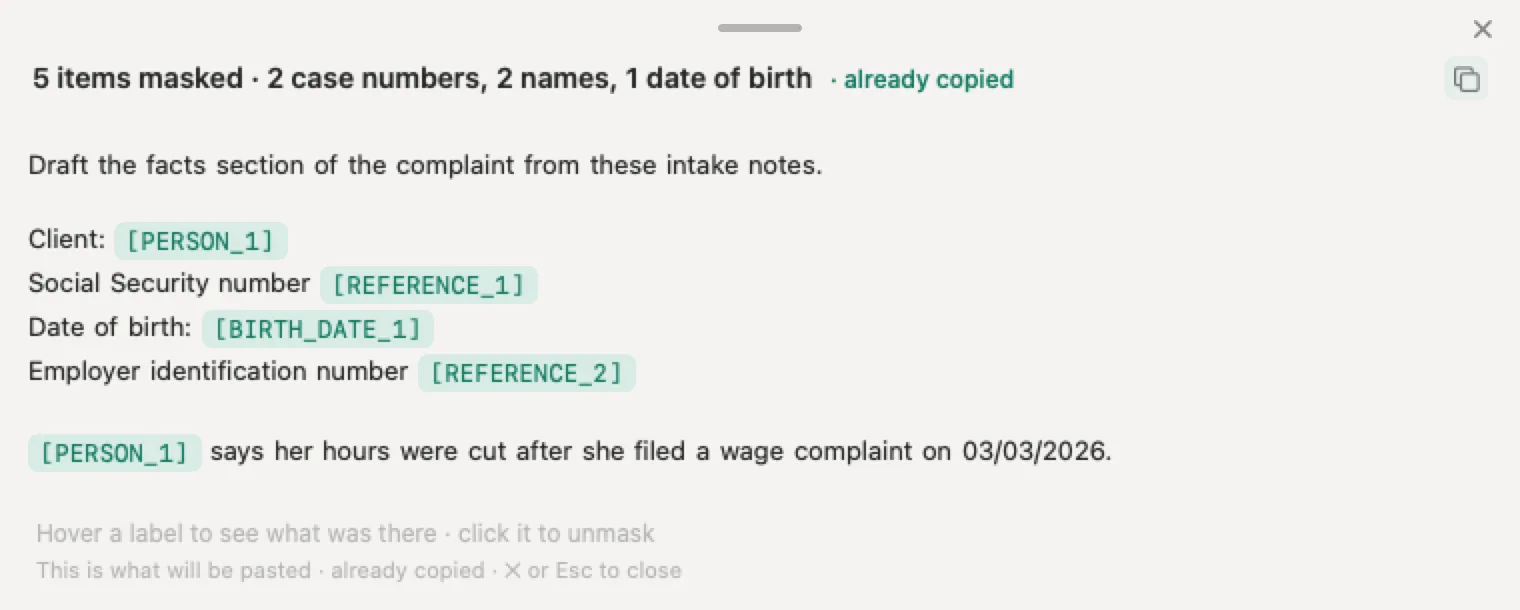
The Word tool in our guide to redacting in Word takes your .docx and gives you back the same Word document with the details replaced by placeholders such as [PERSON_1]. The tool has its own privacy notice.
The Nonimo app, for Mac and Windows, does the same on your own computer, so the document never leaves it. It shows you the masked text ready to paste into the AI and lets you download a masked copy of the same Word file, with its formatting. When the AI’s answer comes back, the real names return on your screen. Our security page lists what the app keeps on your disk.
Sources
All Microsoft pages checked October 4, 2026.
- Microsoft Support, Accept or reject tracked changes in Word. Remove markup before sharing by accepting or rejecting; No Markup only temporarily hides changes, which are visible again the next time someone opens the document; Accept All Changes and Reject All Changes on Windows, Mac and the web; the Document Inspector as a final check. support.microsoft.com
- Microsoft Support, Track changes in Word. Turning tracking off leaves the underlines and strikethroughs in the document; the four markup views; the Accept and Reject lists, including Accept All Changes and Stop Tracking; the Reviewing Pane count; Lock Tracking; hidden markup displays again on opening; comments are no longer part of Track Changes; Mac steps, Protect Document, and turning tracking off in Word for the web. support.microsoft.com
- Microsoft Support, Accept tracked changes (Word training). Accept makes a change permanent and reject gets rid of it; a document can hold suggestions even with tracking off. support.microsoft.com
- Microsoft Support, Use a screen reader to track and review changes in Word. The only way to remove tracked changes permanently is to accept or reject them; Ctrl+Shift+E; the Alt+R sequences; what Lock Tracking prevents. support.microsoft.com
- Microsoft Support, Delete comments. The arrow next to Delete and Delete All Comments in Document, in Microsoft 365, the web and Mac; More thread actions and Delete thread. support.microsoft.com
- Microsoft Support, Use a screen reader to add, read, and delete comments in Word. Alt+R, D, O deletes all comments; resolving a thread doesn’t delete it. support.microsoft.com
- Microsoft Support, Give and respond to feedback in shared Word documents. A resolved thread remains in the document until deleted; a deleted comment is gone for good. support.microsoft.com
- Microsoft Support, Using Modern comments in Word. The Contextual view hides resolved comments; the List view shows active and resolved. support.microsoft.com
- Microsoft Support, Resolve comments in Word for the web. Resolving hides a comment from active review but does not delete it; use Delete thread to remove it permanently. support.microsoft.com
- Microsoft Support, Remove hidden data and personal information by inspecting documents. File, Info, Check for Issues, Inspect Document; the six checks for Word and what each removes; run it on a copy; Undo may not restore; the .odt caveat; white text and covered objects not detected; what comments, revisions and properties reveal; the advice to review files shared with clients. support.microsoft.com
- Microsoft Support, Inspect document. Word for Mac doesn’t have a document inspector and properties are changed by hand under File, Properties; Word for the web cannot view or change properties, so open the desktop app. support.microsoft.com
- Microsoft Support, View my privacy options in Microsoft Office. Remove personal information from file properties on Save, under Trust Center, Privacy Options, turned off in Word; the Document Inspector removes personal information on demand. support.microsoft.com
- Federal Rules of Civil Procedure, Rule 26, with the 2006 Advisory Committee note. Rule 26(b)(5)(B), the procedure after privileged information is produced; the note on embedded data and embedded edits, on the Rule 26(f) conference, and on waiver being left open. law.cornell.edu
- Federal Rules of Evidence, Rule 502. Rule 502(b): for a disclosure made in a federal proceeding or to a federal office or agency, no waiver if it was inadvertent, the holder took reasonable steps to prevent it and promptly took reasonable steps to rectify it. law.cornell.edu
- Federal Rules of Civil Procedure, Rule 34. Rule 34(b)(2)(E), the form of producing electronically stored information. law.cornell.edu
- Nonimo test memo, September 28, 2026. An invented .docx with a tracked deletion and a comment, read with python-docx, macOS textutil and LibreOffice; documented in our Word redaction guide.
Nonimo is the software that does this on your own computer: it masks client names and IDs before your text reaches ChatGPT. No account needed, and the app does it without your files leaving your machine.
Common questions
How do you remove track changes in Word for good?
You accept or reject them. Microsoft's accessibility page for Word puts it plainly: the only way to remove tracked changes permanently is to accept or reject them. On the Review tab, go to Tracking, open the Accept list and choose Accept All Changes, or Accept All Changes and Stop Tracking to turn tracking off in the same step. Then delete the comments, which are a separate job.
Does turning off Track Changes remove the changes already in the document?
No. Microsoft says that when Track Changes is off, Word stops marking new changes, but the colored underlines and strikethroughs are still in the document. Everything recorded while tracking was on stays there until someone accepts or rejects it. Turn tracking off after you have settled the changes, or use Accept All Changes and Stop Tracking, which does both at once.
Why do tracked changes show up again when someone else opens my file?
Because they were only hidden. Microsoft's support page says choosing the No Markup view only temporarily hides changes, and they will be visible again the next time someone opens the document. The same goes for markup you hide from the Show Markup menu. The recipient gets the file, not your view of it, so the changes have to be accepted or rejected before it leaves.
How do I delete all comments in Word at once?
On the Review tab, select the down arrow next to Delete and choose Delete All Comments in Document. Microsoft documents the same path in Word for Windows, Word for Mac and Word for the web. Do it on a copy: Microsoft warns that a deleted comment is gone for good. Accepting all changes does not touch the comments, because comments are no longer part of Track Changes.
Does resolving a comment in Word delete it?
No. Microsoft says a resolved thread remains in the document until you delete it, and that resolving a comment hides it from active review but does not delete it. Resolved comments drop out of the margin and stay in the Comments pane, so anyone who opens the pane can read them. Use Delete thread for one, or Delete All Comments in Document for the whole file.
Why can't I accept or reject tracked changes in a Word document?
Tracking may be locked. With Lock Tracking on, Microsoft says anyone opening the document can view the changes but cannot turn off the feature or accept or reject them. On Windows it sits under Review, Tracking, Track Changes, Lock Tracking; on a Mac, under Review, Protect, Protect Document. Either way you need the password, so ask whoever locked it, or ask for an unlocked copy.
How do I remove metadata from a Word document?
Run the Document Inspector on a copy: File, Info, Check for Issues, Inspect Document, then Remove All next to Document Properties and Personal Information. Microsoft says those properties include the author and the name of the person who most recently saved the file. Word for Mac has no Document Inspector, so there you edit the properties by hand under File, Properties.
Is a Word file safe to upload to an AI once the changes and comments are gone?
Safer, not finished. Accepting changes and deleting comments removes the edits and notes that were hidden; the body still holds the client's names and numbers in plain view. That is the part Nonimo covers: the app for Mac and Windows masks the document on your own computer, shows you the text with placeholders ready to paste, and lets you download a masked copy of the same Word file.